Users
Note
This page describes the standard user management in the Nerve Management System. When LDAP authentication is active, user attributes and details are carried over from an LDAP server. Refer to LDAP for more information on LDAP synchronization.
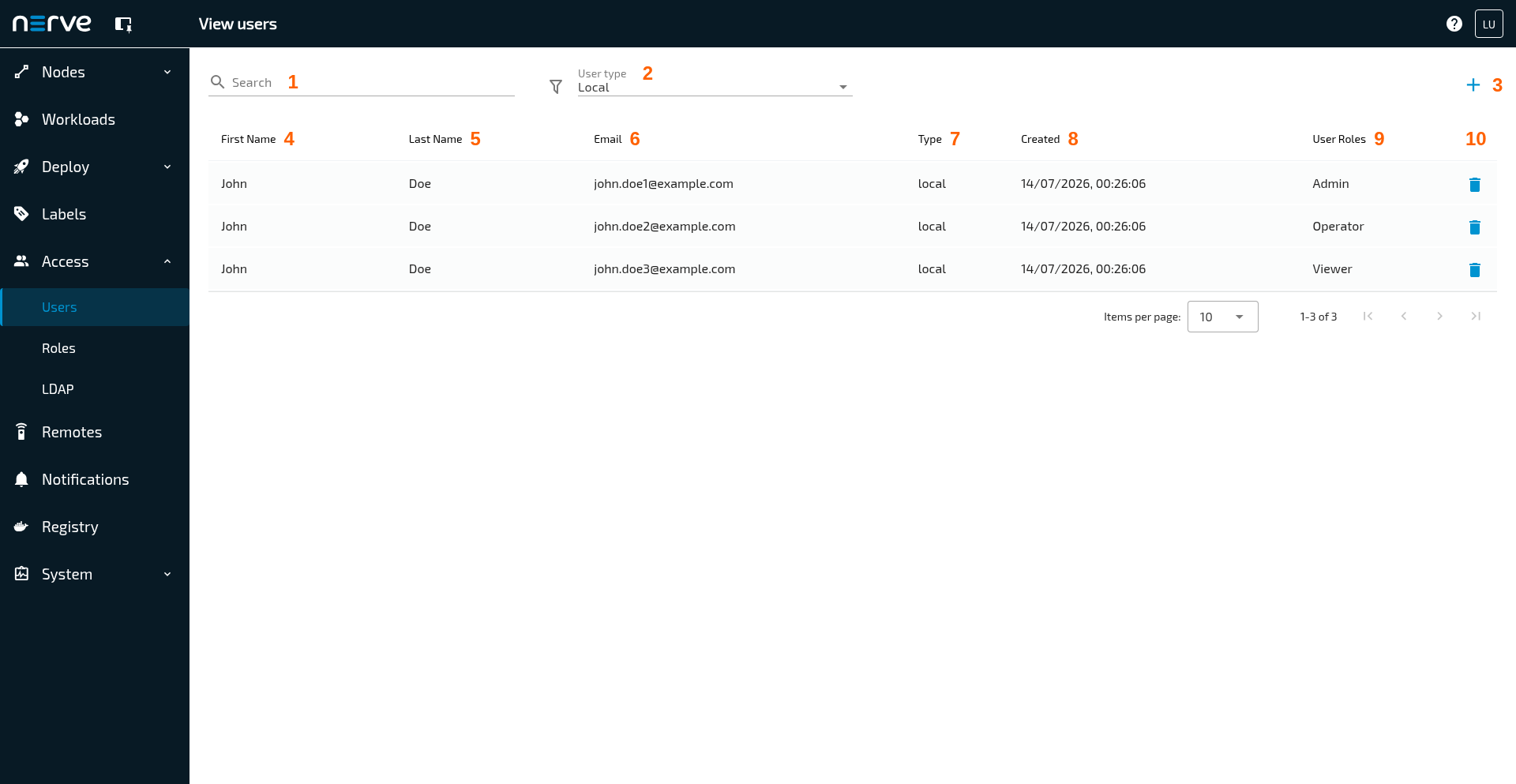
Select  Access > Users to open the menu View users. This menu offers a list of all registered users. Every user has their own user profile with details about the user. There is one default user that is created with the Management System. The credentials for this user can be found in the customer profile.
| Item | Description |
|---|---|
| Search bar (1) | Use the search bar to filter the list of users. The columns First name, Last Name and Email are the targets of the search. |
| Type filter (2) | Filter the list of users by authentication method. The target of the filter is the Type column and the options are Local, Ldap and All. |
| Add user (3) | Select this icon  to add a new user. to add a new user.Note that new users cannot be added when LDAP synchronization is active. |
| First Name (4) | This is the first name of the registered user. It is displayed in the upper-right corner when the user is logged in. |
| Last Name (5) | This is the last name of the registered user. It is displayed in the upper-right corner when the user is logged in. |
| Email (6) | This is the e-mail address of the user. It is used as the username for logging in to the Management System in case of local authentication. When LDAP authentication is active, the username attribute that is carried over from LDAP synchronization is used to log in. The system also uses this e-mail for sending the activation link and the instructions on how to reset the login password. Note that passwords cannot be changed or reset if LDAP authentication is active. |
| Type (7) | This column shows the type of the user according to the authentication method used:
|
| Created (8) | This is the date and time stamp the user was created. The date format is DD/MM/YYYY, hh:mm:ss. |
| User Roles (9) | The roles that are assigned to a user are displayed in this column. |
| Action (10) | This column contains icons representing different actions. Here, it contains a garbage can icon for deleting users. |
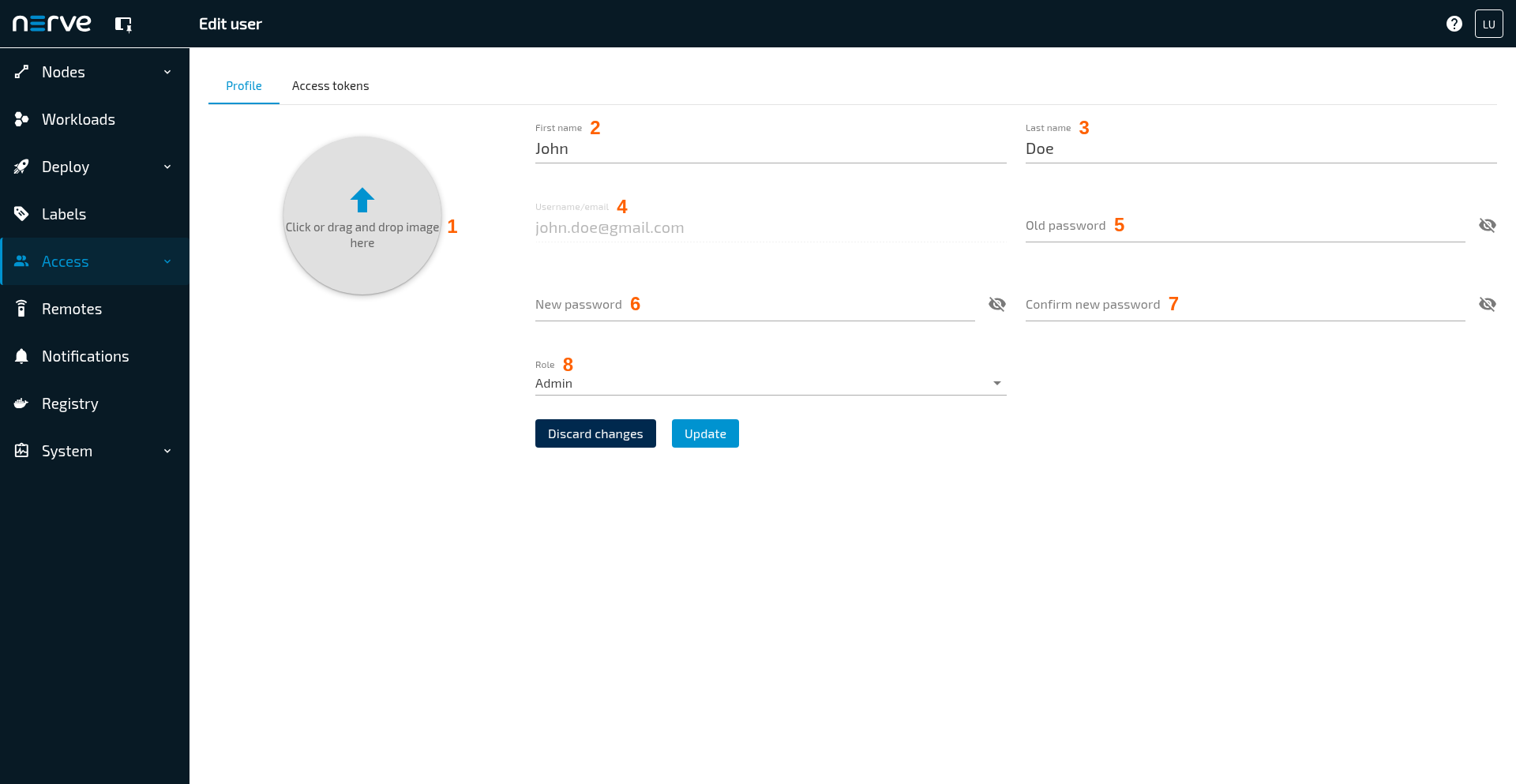
Selecting any of the users leads to their user profile. An admin can edit the details of any user profile if local authentication is active. This includes Profile Picture, First name, Last name, Language and Role. The e-mail address of a user cannot be changed. The password for an account can only be changed by the respective (currently logged in) user. Note that users cannot be edited when LDAP authentication is active.
| Item | Description |
|---|---|
| Profile Picture (1) | Select this or drag and drop an image into the gray circle to upload a profile picture for the user. It is displayed in the upper-right corner when the user is logged in. Note that a profile picture cannot be set for users coming from LDAP synchronization. |
| First name (2) | This is the first name of the registered user. It is displayed in the upper-right corner when the user is logged in. |
| Last name (3) | This is the last name of the registered user. It is displayed in the upper-right corner when the user is logged in. |
| Username/email (4) | This is the e-mail address of the user. It is used as the username for logging in to the Management System in case of local authentication. When LDAP authentication is active, the username attribute that is carried over from LDAP synchronization is used to log in. The system also uses this e-mail for sending the activation link and the instructions on how to reset the login password. Note that passwords cannot be changed or reset if LDAP authentication is active. |
| Old password (5) | Enter the current password here when changing the password. This can only be done by the active user when local authentication is active. |
| New Password (6) | Enter the new password here when changing the password. This can only be done by the currently logged in user when local authentication is active. |
| Confirm new password (7) | Enter the new password again when changing the password. This can only be done by the currently logged in user when local authentication is active. |
| Role (8) | This defines the role of the user. Refer to Roles and Permissions for more information. |
Adding a new user
Admin users or users having the UI_USER:CREATE permission assigned in a role need to create new users before these can set a password and log in to the Management System. Note that new users cannot be added when LDAP authentication is active.
- Select Access > Users in the menu bar on the left side.
-
Select the
Add new user symbol in the upper-right corner.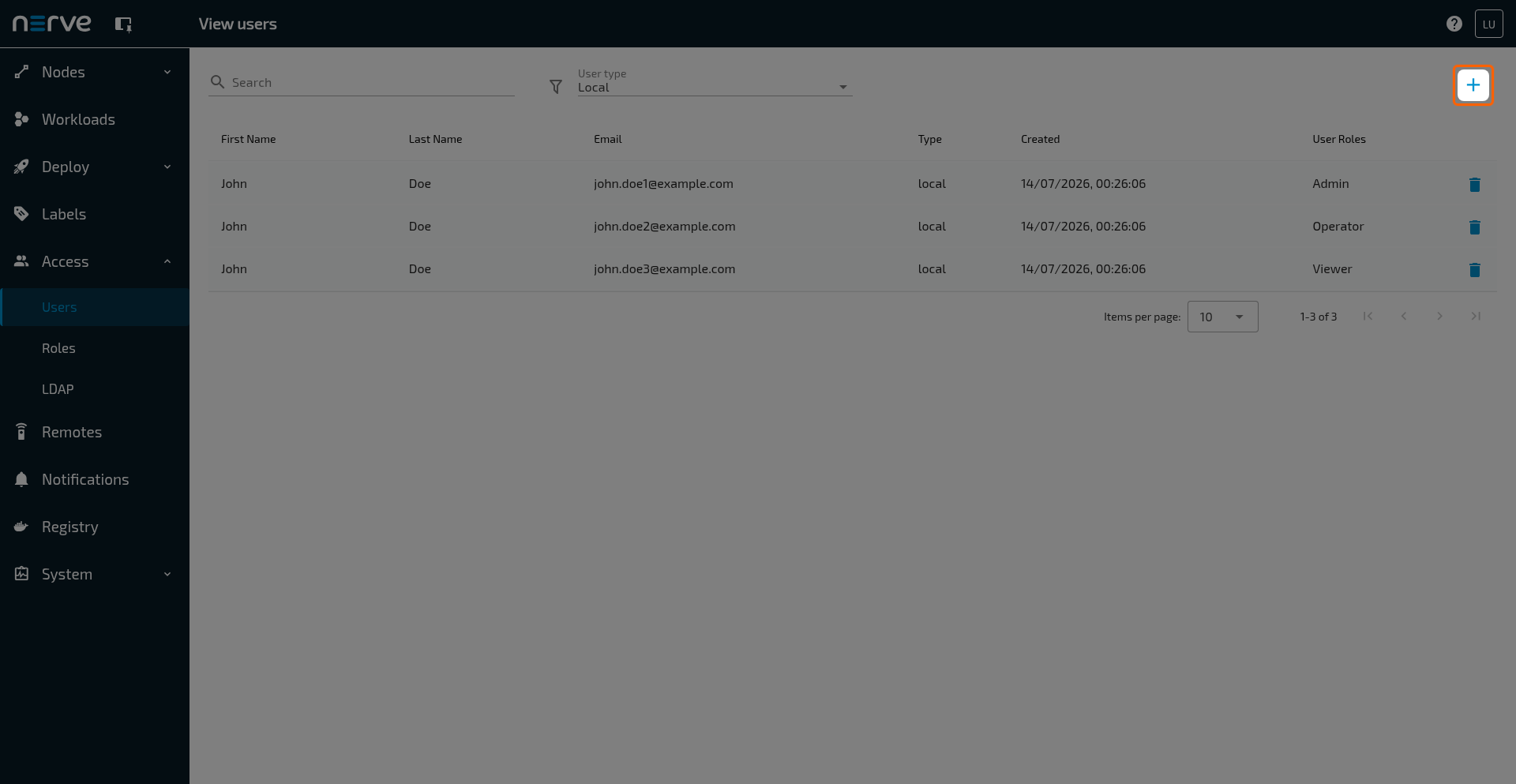
-
Enter the required information: First name, Last name and Username/email.
- Upload a Profile Picture (optional).
- Select one or more roles from the drop-down menu under Role.
- Select Save to create the user.
The user must activate the account using a link sent to their e-mail. The activation is automatically sent to the specified e-mail address after the account is created.
Activating a user
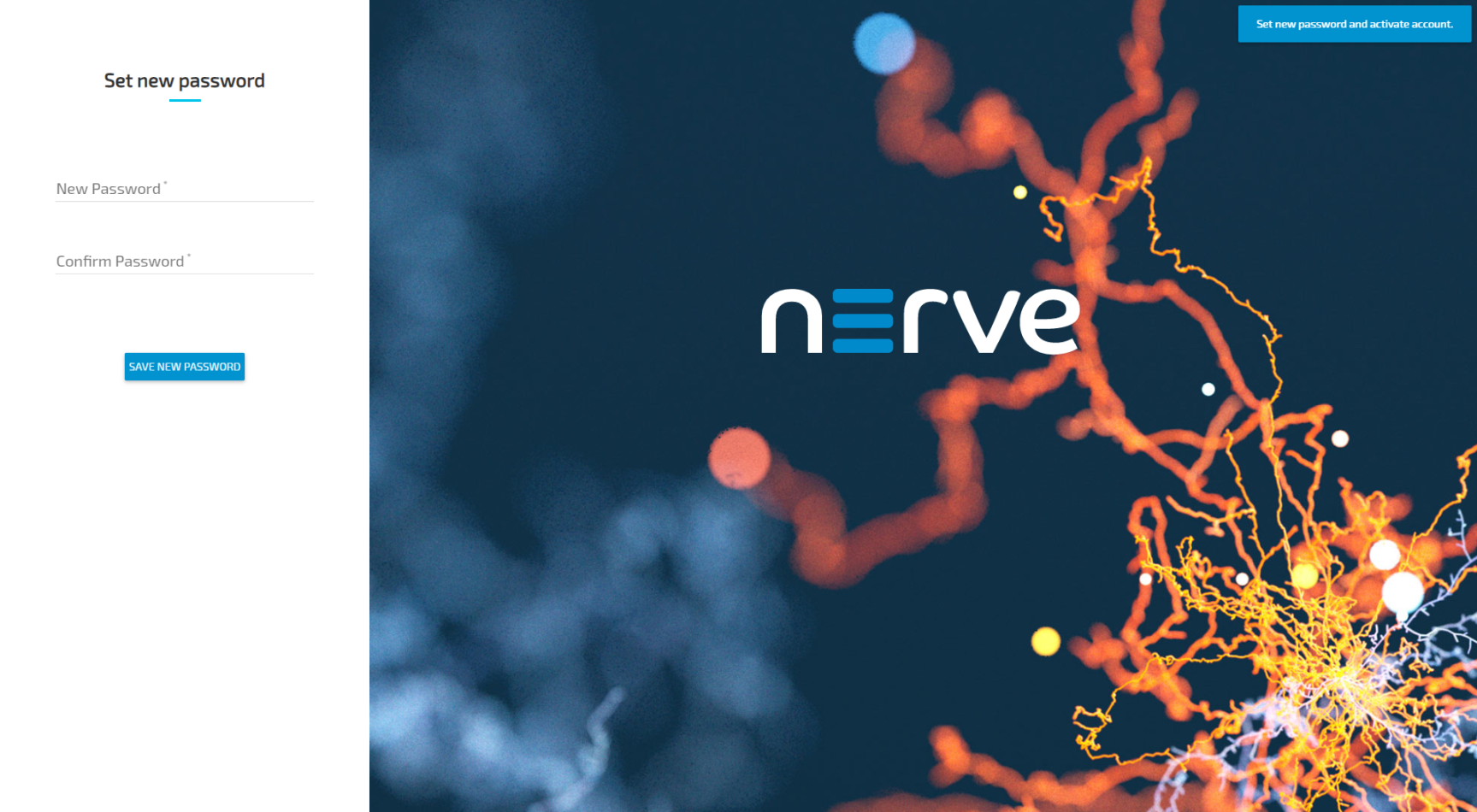
Newly created users are sent an activation link to the specified e-mail address when the user was created. Following the link, the user will need to set their password in order to be activated and to be able to log in to the Management System.
- Follow the activation link that was sent to the specified e-mail address.
-
Enter the new password to use for Management System access under New Password and Confirm Password.
Note
The password must contain at least one uppercase letter, one lowercase letter and one number. It must be at least 8 characters. These are the default configurations for the password policy. They can be adjusted if necessary. For more information refer to Section Configuration in Security hardening guidelines.
-
Select SAVE NEW PASSWORD.
The new user is now activated and can log in immediately with their e-mail address and the password they have defined.
Resetting Credentials
In case a user does not remember their password, a request to reset the credentials can be sent from the login page of the Management System.
Note that passwords cannot be reset if LDAP authentication is active.
- Enter the URL of the Management System in a browser.
-
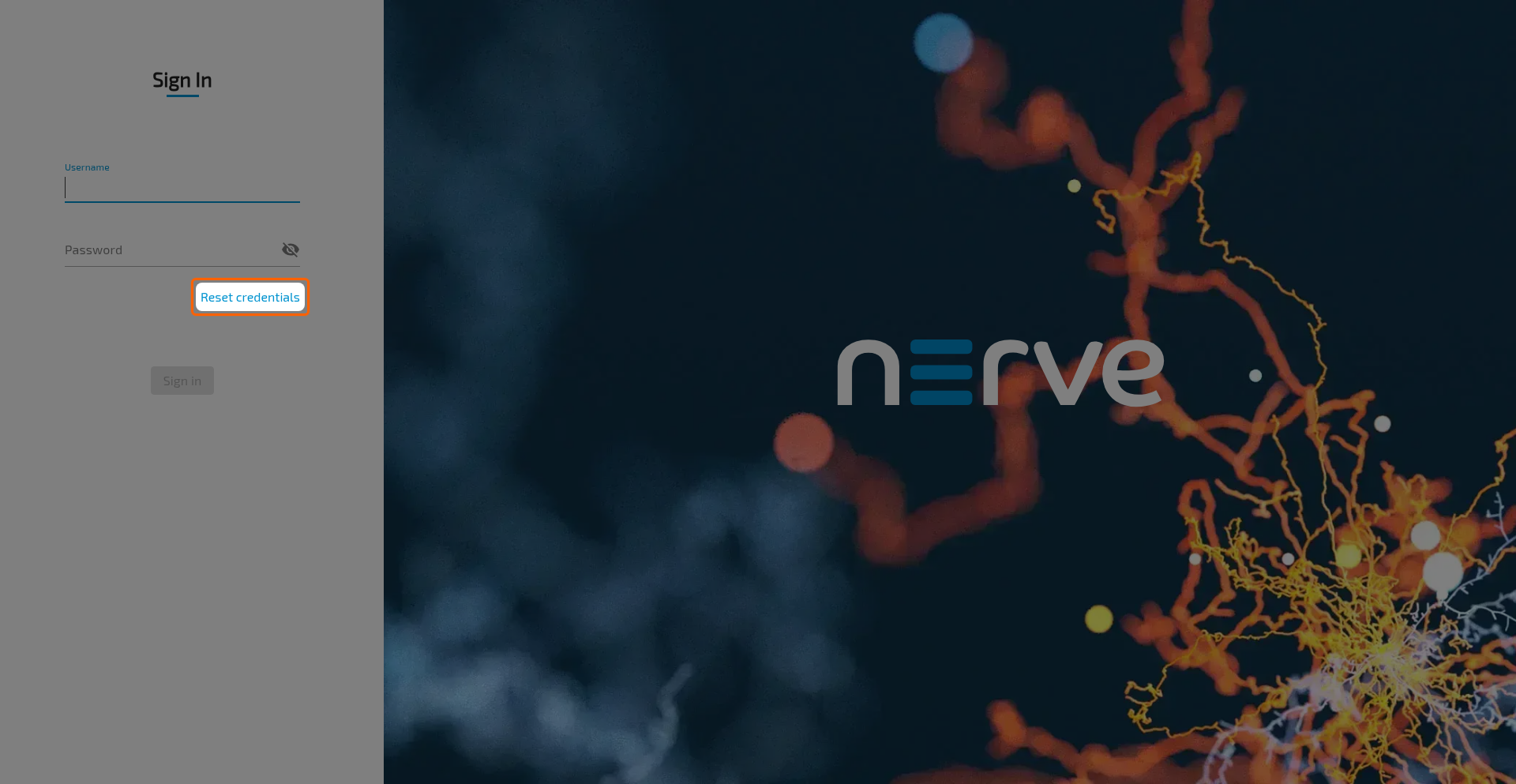
Select Reset Credentials.
-
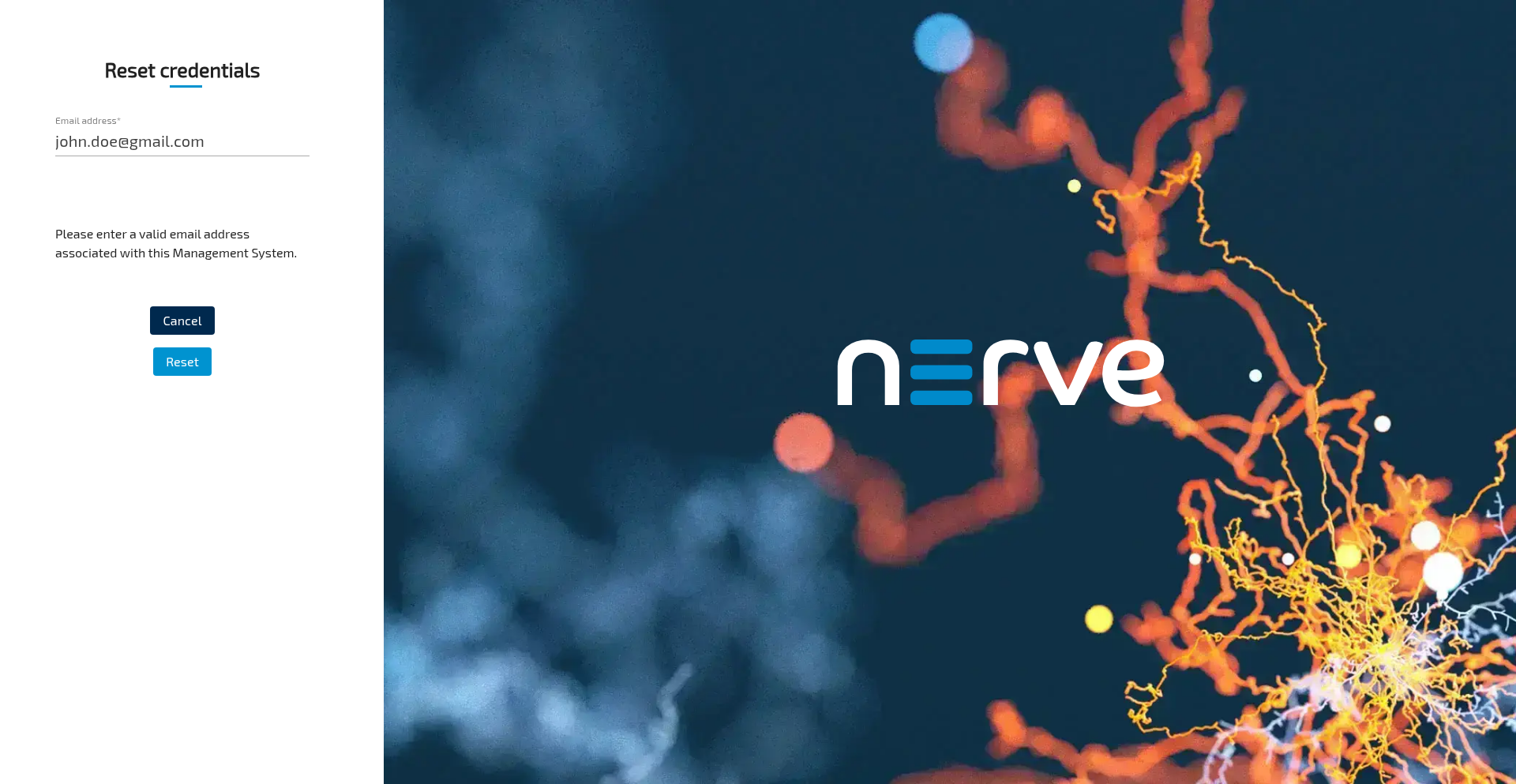
Enter the e-mail address of the account that needs to reset the password.
-
Select Reset. An e-mail with instructions is sent to the e-mail address of the account.
- Follow the link from the e-mail to reset the password.
-
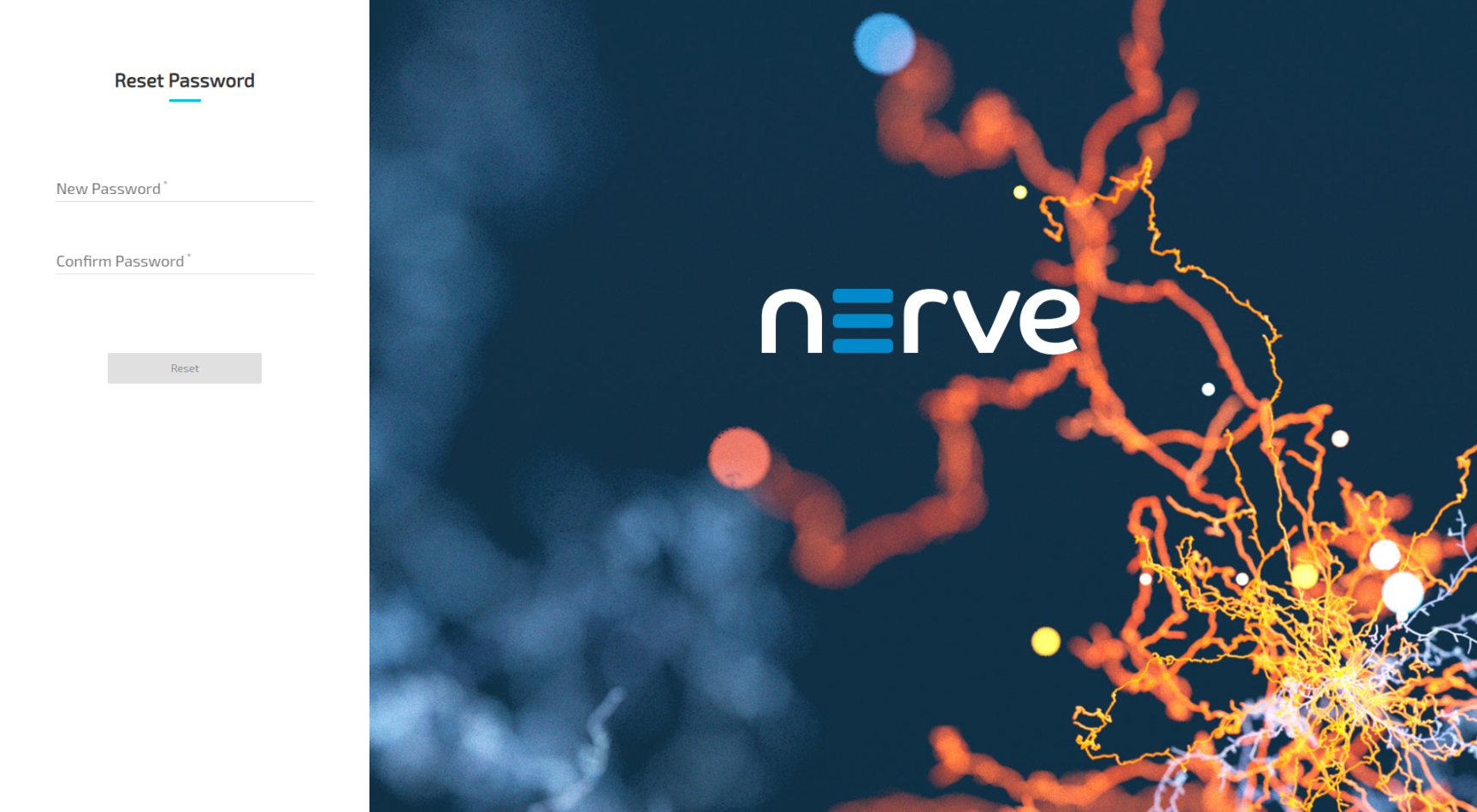
Enter the new password for Management System access under New Password and Confirm Password.
-
Select Reset to save the new password.
The password has been changed and the user can log in immediately with their e-mail address and the new password.
Deleting a user
Admin users or users having the UI_USER:DELETE permission assigned in a role can delete any user that is registered in the Management System.
Note that users cannot be deleted when LDAP authentication is active.
- Select Access > Users in the menu on the left side.
-
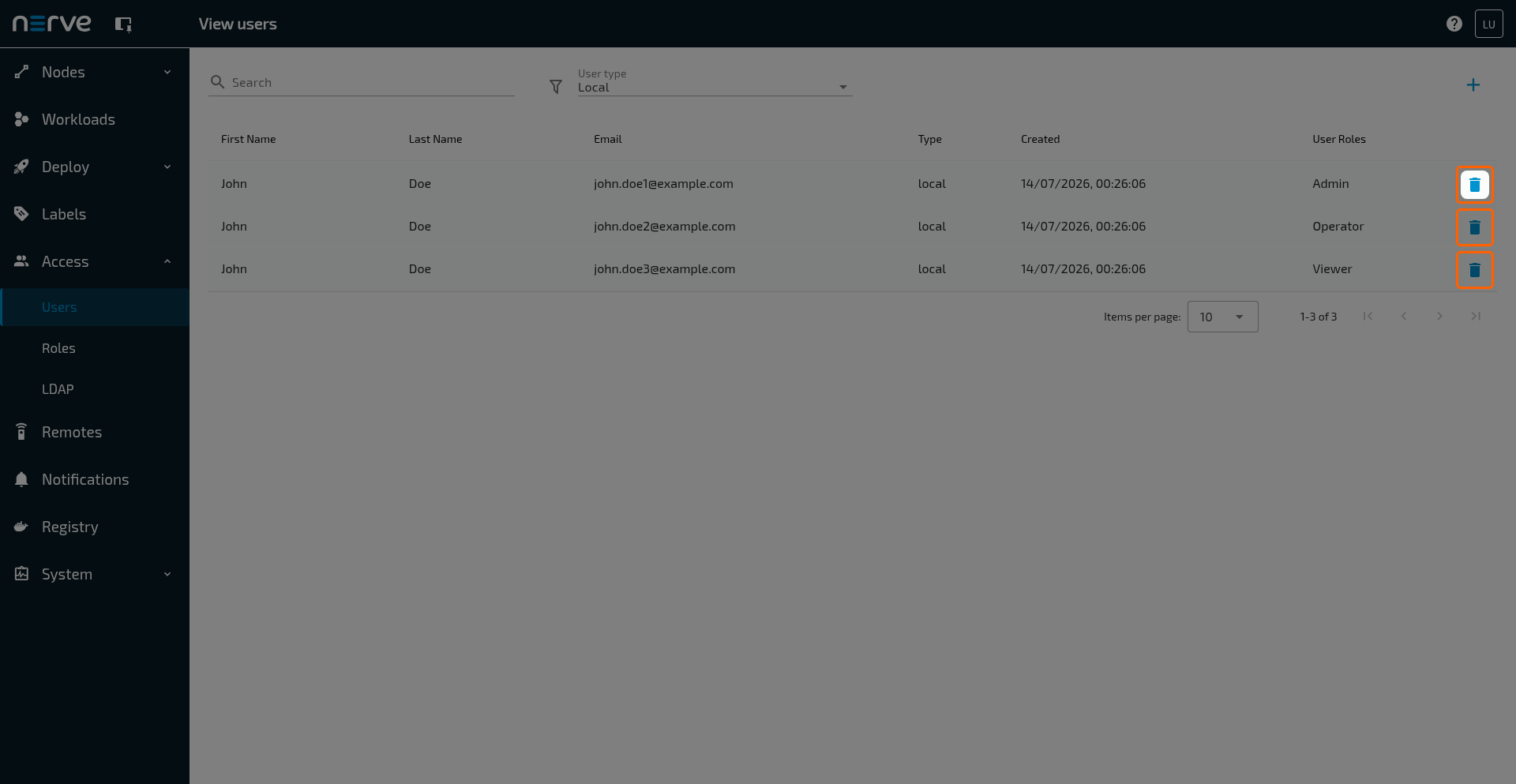
Choose the user to delete.
-
Select the
 Delete icon in the Action column.
 - Select Yes to confirm the deletion of the user.