Deploying a workload
Workloads that have been provisioned in the Management System are ready to be deployed in the menu  Deploy > Deployments.
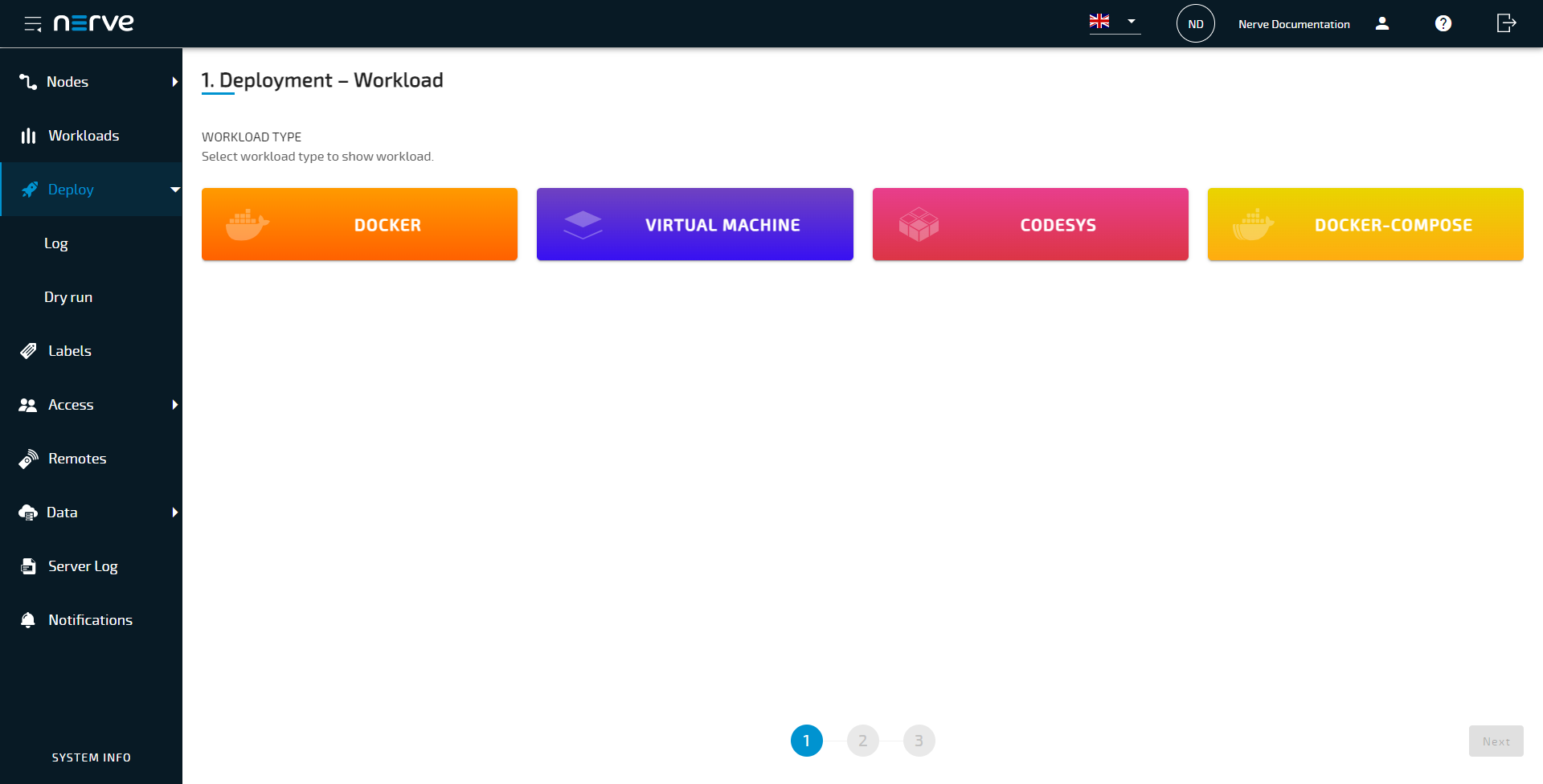
This section covers the deployment process of the available workloads: CODESYS workloads, Virtual Machine workloads, Docker workloads and Docker Compose workloads. The process of deploying workloads is identical for all types of workloads. Therefore, the instructions below contain no specific information. Workloads can be deployed from the following areas in the Management System:
- Deploy menu
- Workloads menu
Deploying a workload from the Deploy menu
The Deploy menu is a section of the Management System dedicated to deploying workloads to nodes.
- Select Deploy > Deployments in the navigation on the left.
-
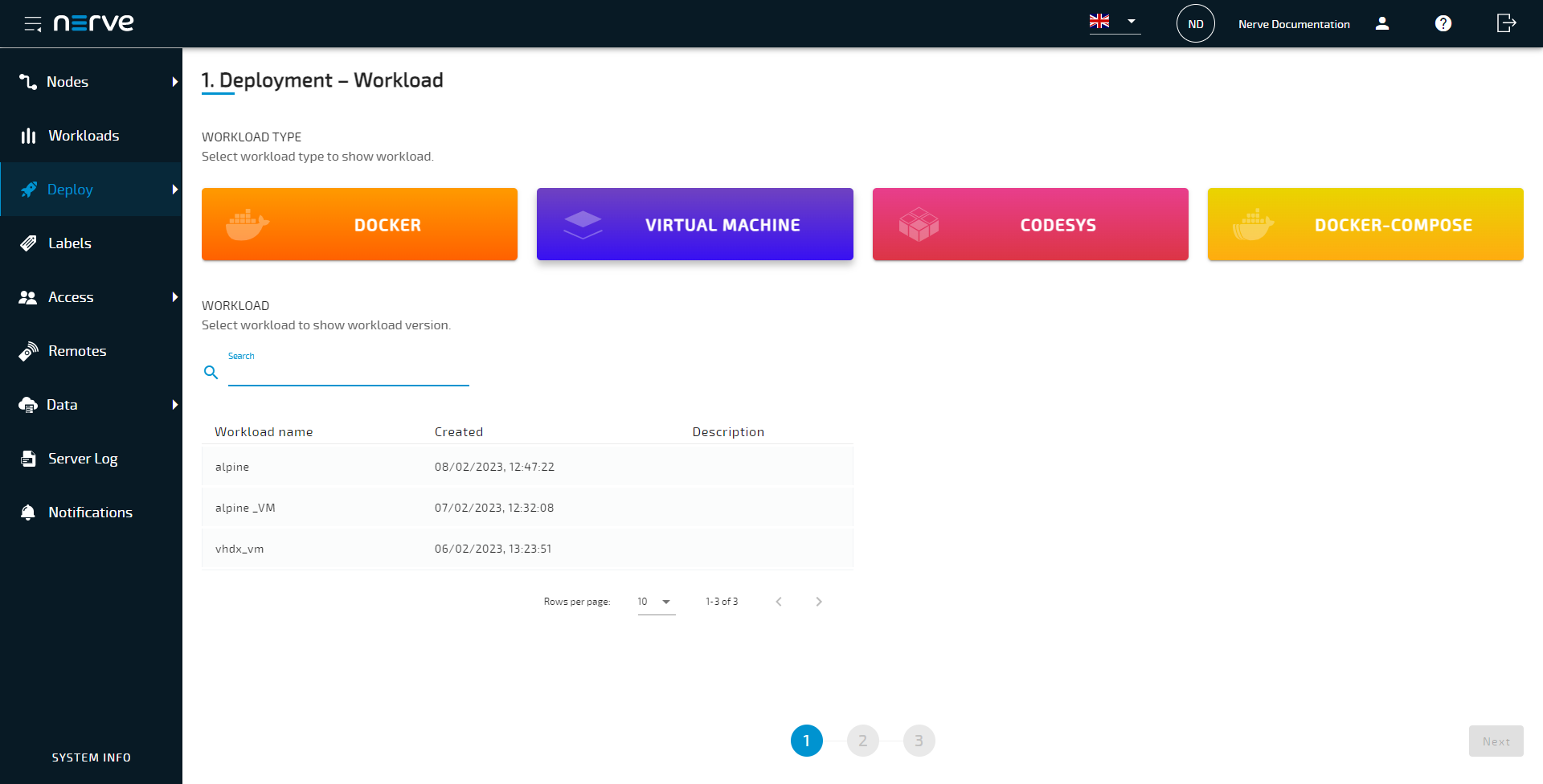
Select one of the workload type icons. A list of corresponding workloads will appear below.
-
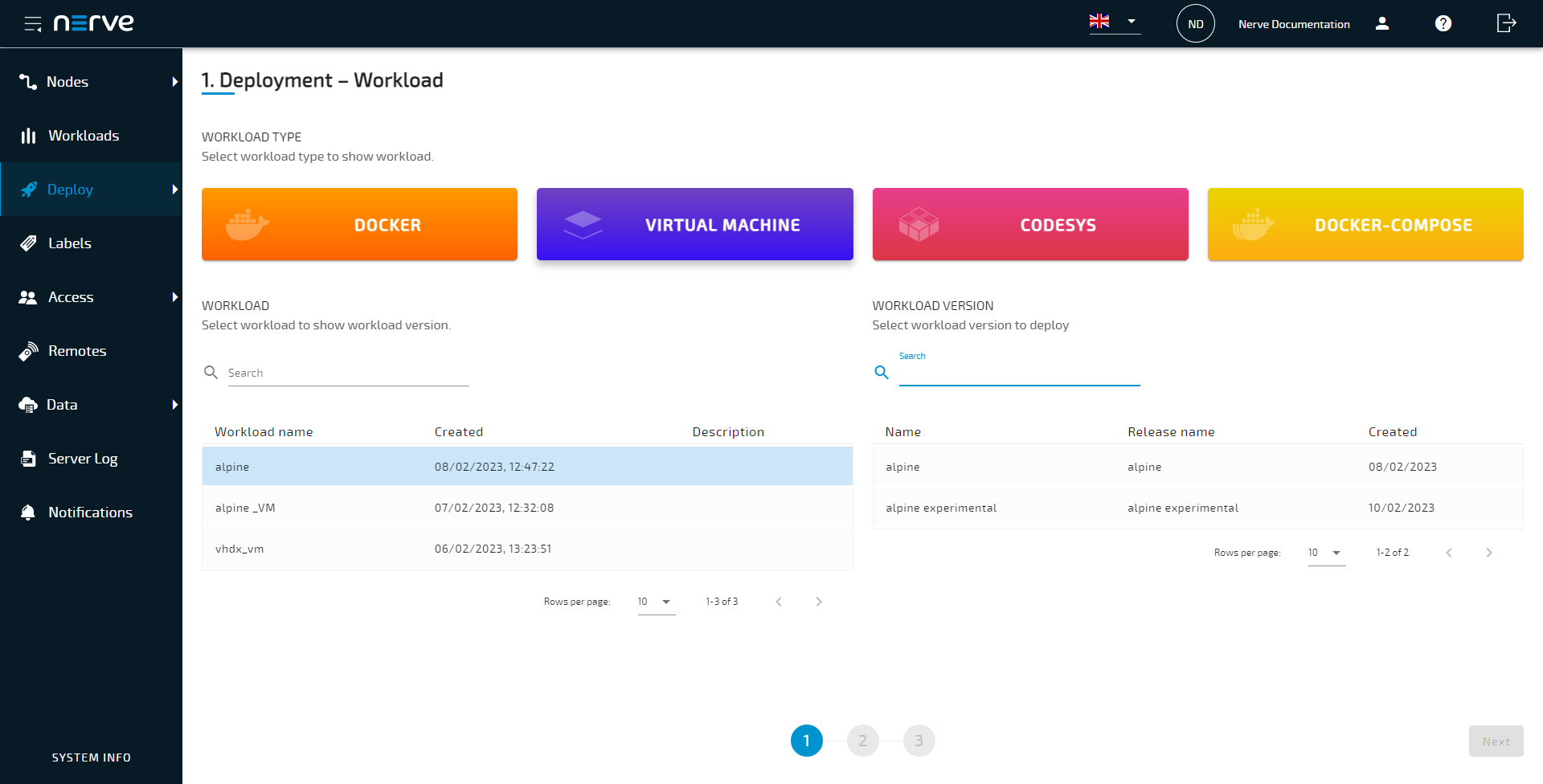
Select a workload from the list. A list of versions of this workload will appear to the right.
-
Select the version of the workload to deploy.
-
Select Next in the bottom-right corner.

-
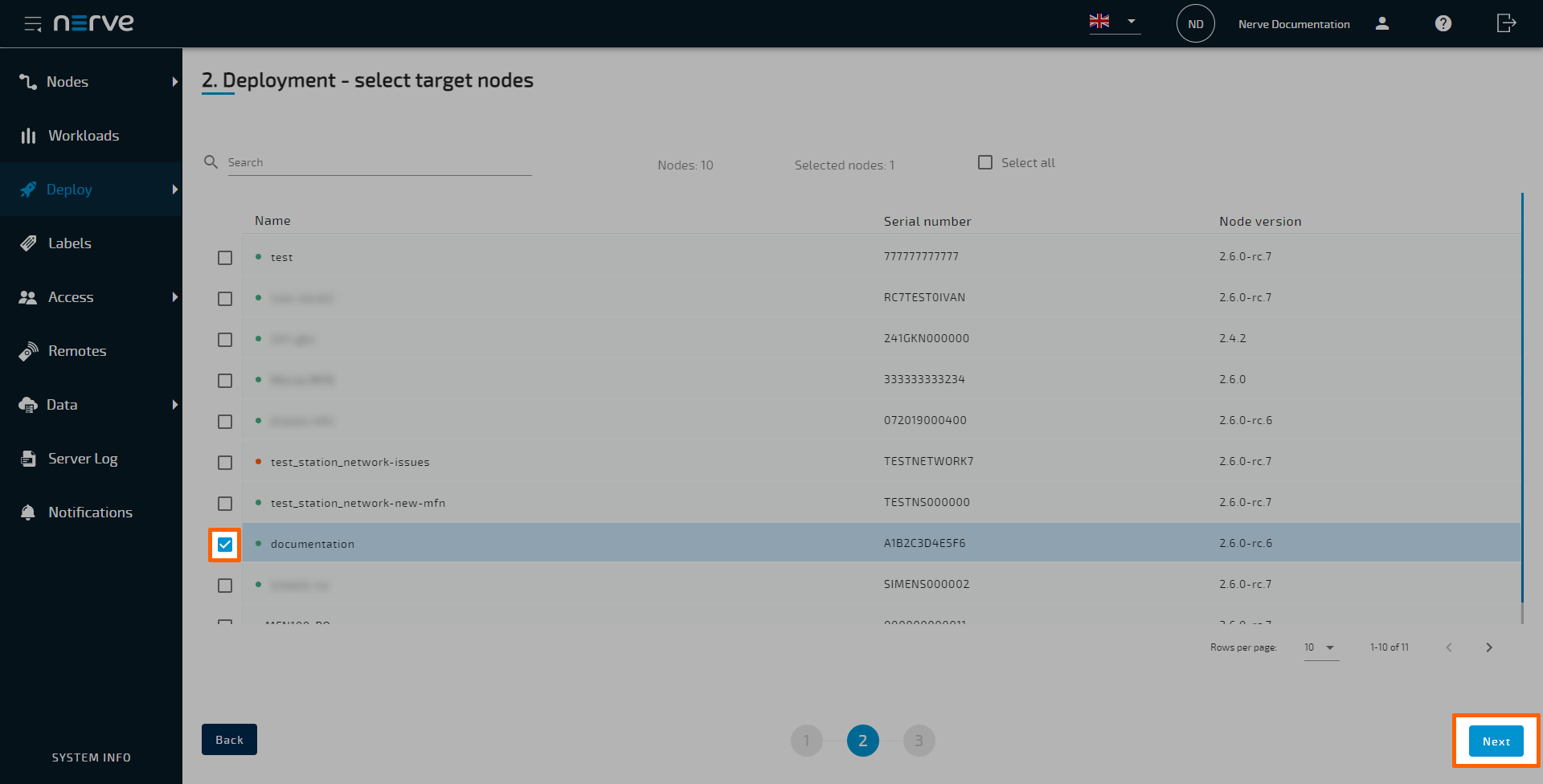
Tick the checkboxes on the left to select one or more nodes from the list for deployment.
Note
Automatic filtering of nodes is applied according to labels, online status and capabilities. The list of available nodes only displays nodes compatible for the workload. For example, it is not possible to deploy a workload that uses Management System registry to a node that doesn't support it.
-
Select Next in the lower-right corner.
-
Select Deploy to execute the deployment.
Optional: Enter a Deploy name to make this deployment easy to identify. A timestamp is filled in automatically.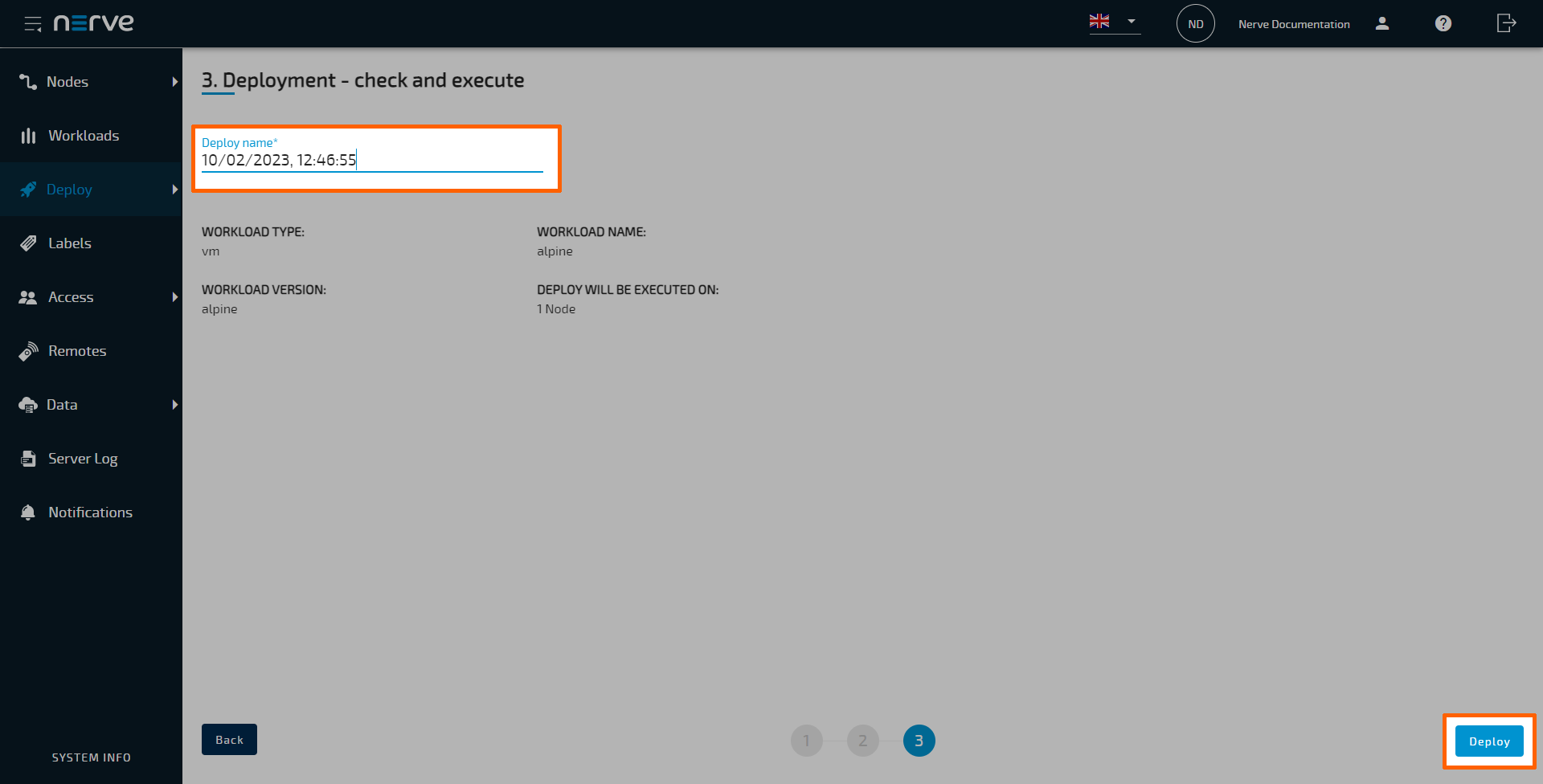
The Management System will continue to the deployment logs next. The current deployment is at the top of the list. The Deploy name chosen before is the name that identifies the deployment in the log.
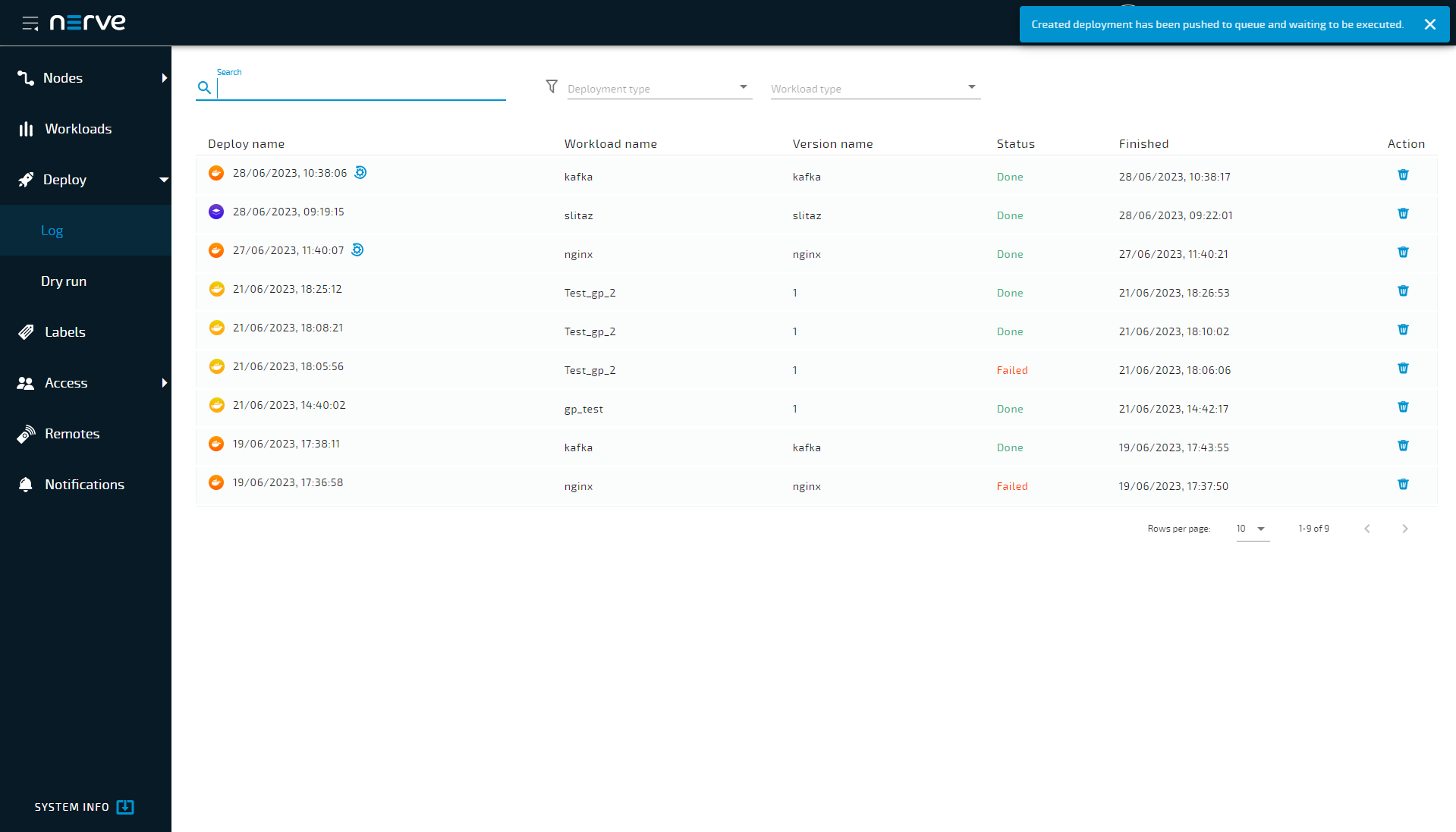
Select the log entry of the deployment to see a more detailed view. The progress of the current deployment is displayed here.
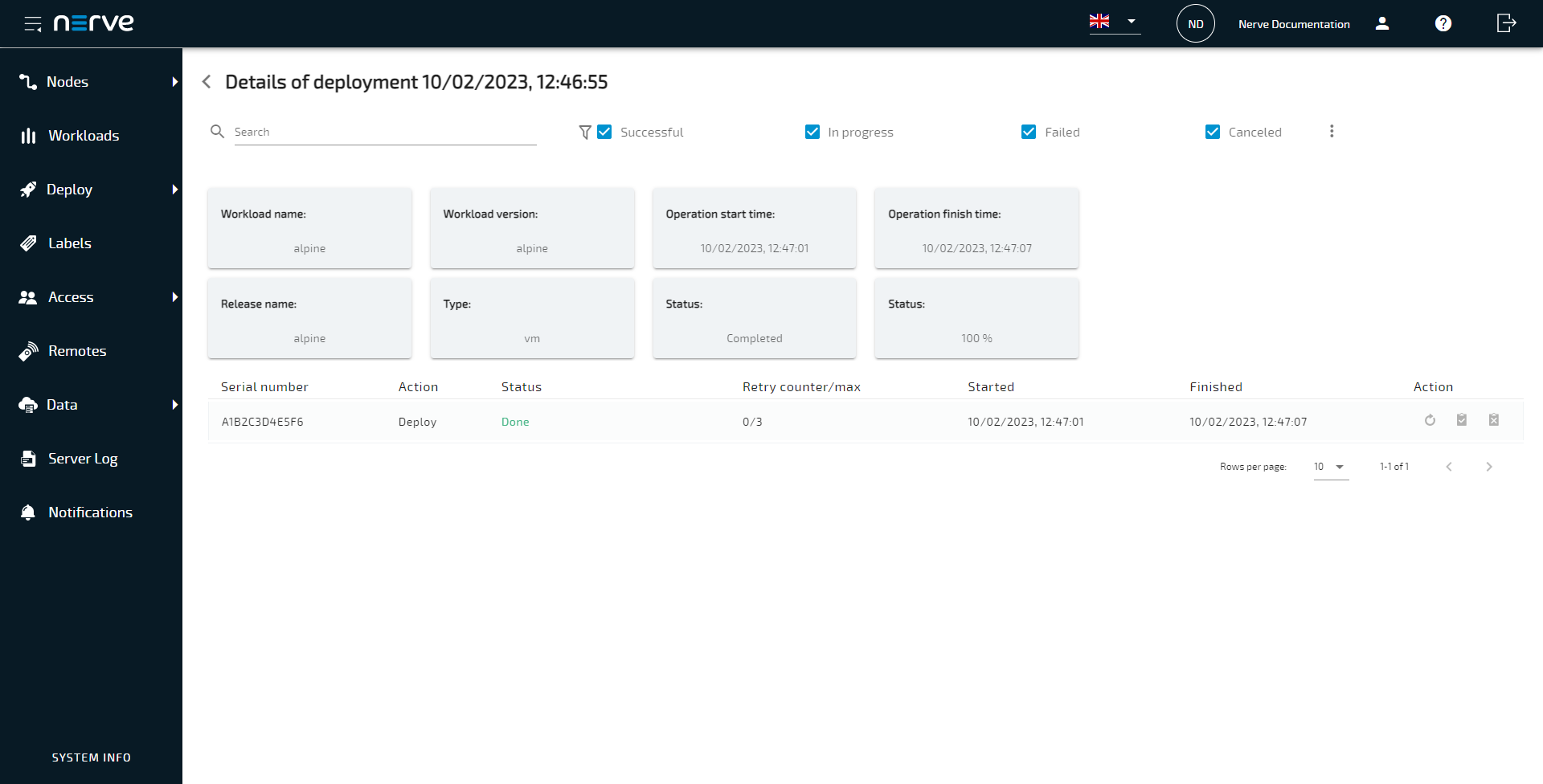
If the workload has been deployed successfully, it can be checked in the node tree.
Select  Nodes > View in the navigation on the left. Select the node with the deployed workload to find the deployed workload in the Overview.
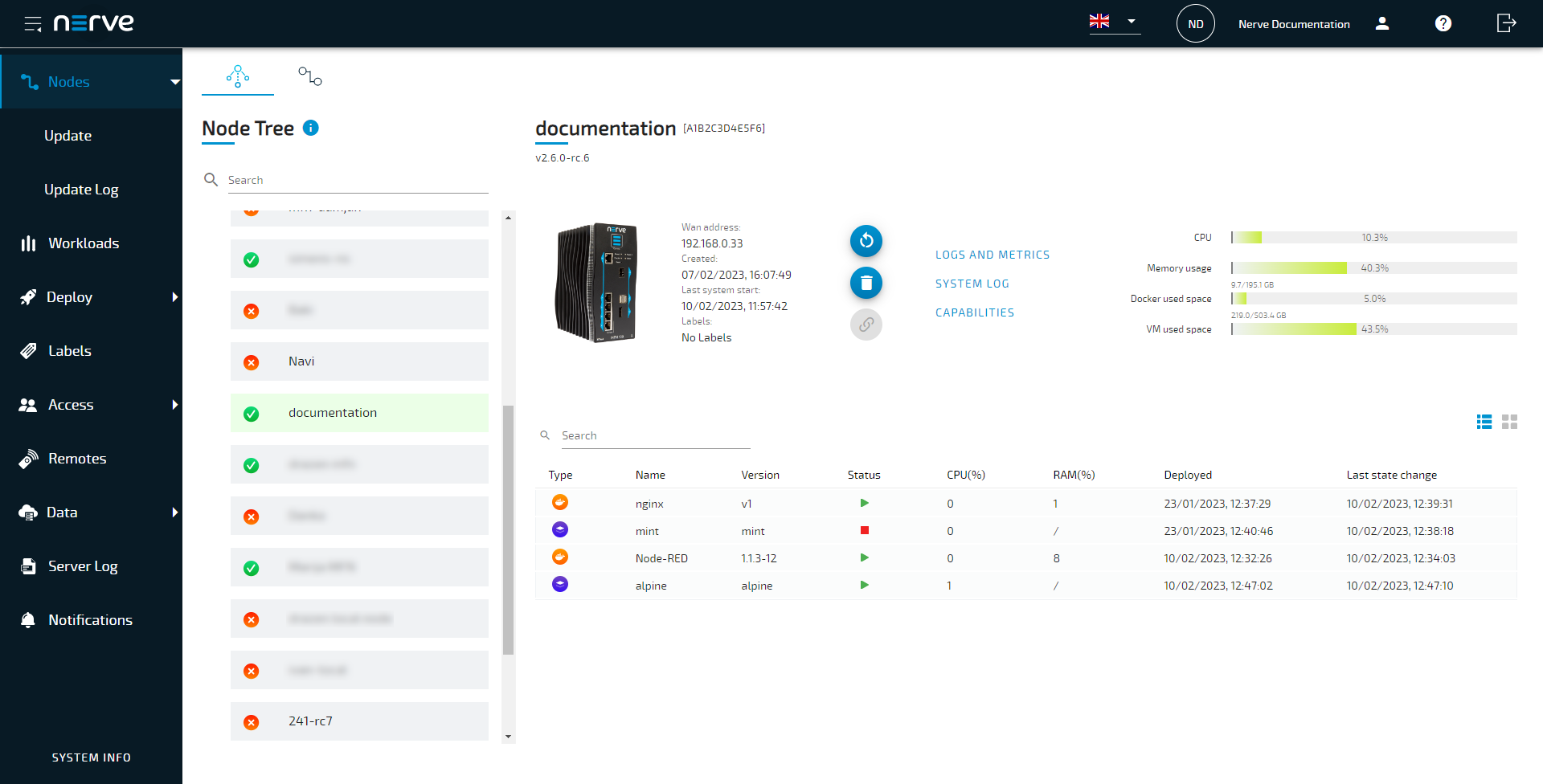
Reach the workload control area by selecting a workload. All workloads are started as soon as they are deployed. Note that CODESYS applications can only be controlled through the Local UI.
Deploying a workload from the Workloads menu
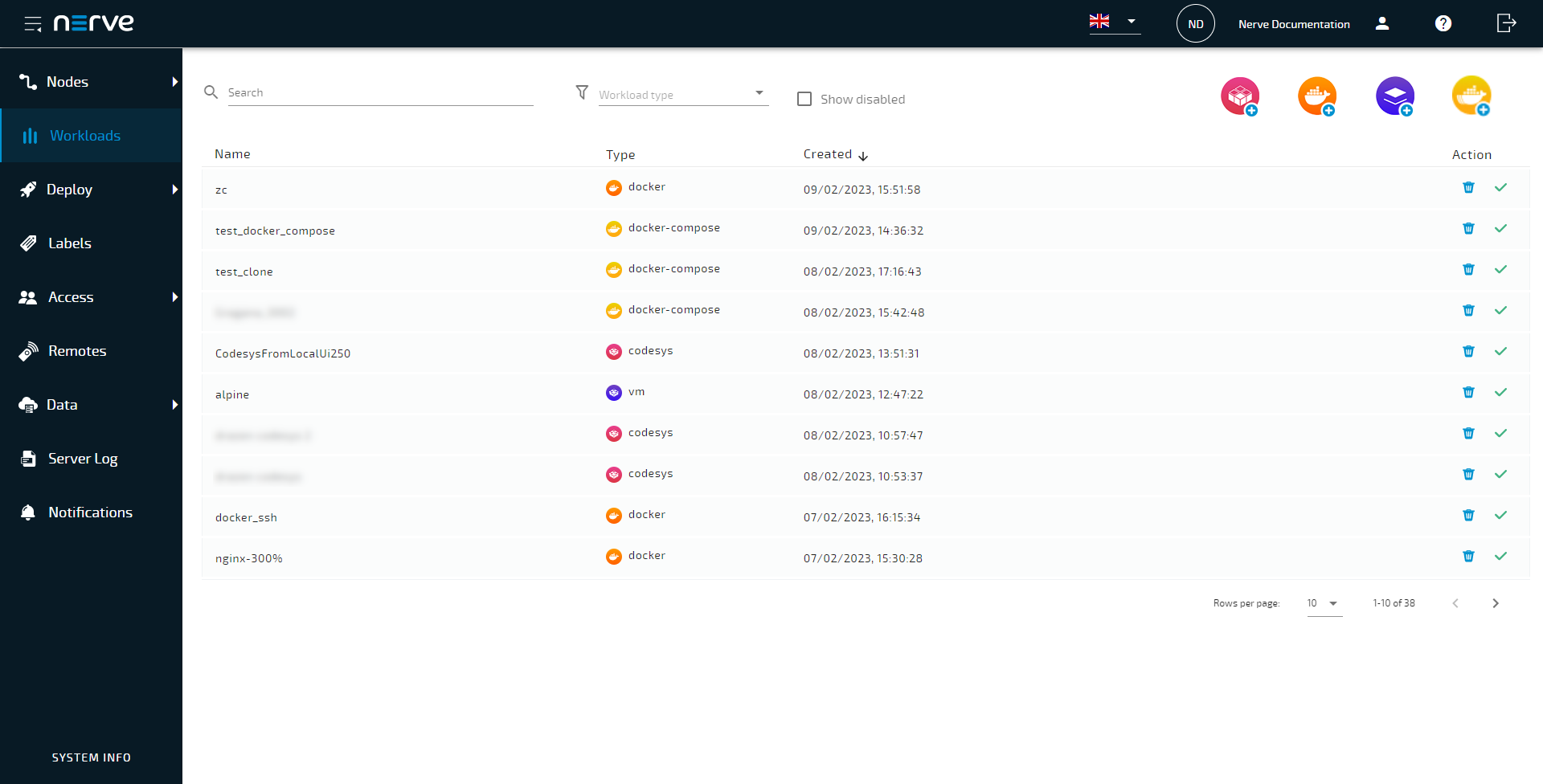
It is also possible to deploy workloads from the Workloads menu. A Deploy icon is available for every workload version in the list of workload versions.
-
Select Workloads in the navigation on the left.
-
Select a workload from the list.
- Select the Deploy icon from the Action column of the workload version that will be deployed.
-
Tick the checkboxes on the left to select one or more nodes from the list for deployment.
Note
Automatic filtering of nodes is applied according to labels, online status and capabilities. Additionally, when you deploy a workload that uses the Docker registry to the node, only nodes that support the Docker registry will be shown. The list of available nodes only displays nodes compatible for the workload.
-
Select Next in the lower-right corner.
-
Select Deploy to execute the deployment.
Optional: Enter a Deploy name to make this deployment easy to identify. A timestamp is filled in automatically.
The Management System will continue to the deployment logs next. The current deployment is at the top of the list. The Deploy name chosen before is the name that identifies the deployment in the log.
Select the log entry of the deployment to see a more detailed view. The progress of the current deployment is displayed here.
If the workload has been deployed successfully, it can be checked in the node tree.
Select Nodes > View in the navigation on the left. Select the node with the deployed workload to find the deployed workload in the Overview.
Reach the workload control area by selecting a workload. All workloads are started as soon as they are deployed. Note that CODESYS applications can only be controlled through the Local UI.
Removing logical volumes after unsuccessful VM deployment
If a virtual machine workload fails in the download phase of the deployment process, it is possible that the logical volumes created for the workload stay behind. This does not negatively impact the system. However, the disk space reserved for the virtual machine workload will stay reserved unless it is removed. Follow the instructions below to find out the workload ID of the failed deployment and how to remove the logical volume.
Finding out the workload ID
Every workload has a unique ID that is used for naming the logical volume when it is created during the deployment process. This workload ID can be found in a JSON file when a workload is exported from the Management System.
- Access the Management System.
- Export the virtual machine workload the deployment of which has failed by following Exporting a workload. The workload is downloaded as a TAR file.
- Navigate to the folder where the TAR file is located.
- Extract the TAR file.
- Open the JSON file with a text editor. The TAR file only contains one JSON file.
-
Look for
"workloadId"in the file. It is the second entry in the file.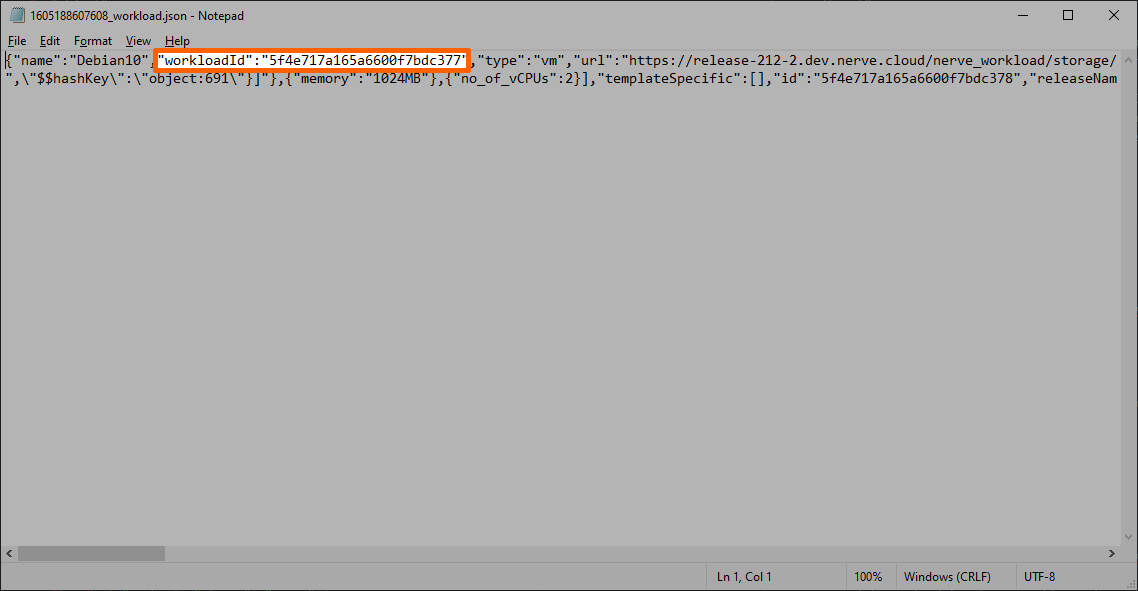
-
Note down the ID. It is required to identify the logical volume that needs to be removed.
Removing the logical volumes
With the workload ID of the unsuccessfully deployed workload, the logical volumes can be correctly identified and removed. For this, the workstation needs to be connected to the physical port of the Nerve Device associated with host access, and the network adapter IP address of the workstation needs to be configured in the correct range. This information is device specific. Refer to the device guide for information on the Nerve Device.
Note
The following instructions require access to the Linux host system of Nerve. Using host access requires expert Linux knowledge as system internal changes can be performed. Note that changes may impact the Nerve system.
- Open an SSH client like PuTTY.
-
Enter the IP address for host access to the Nerve Device under Host Name (or IP address) to log in to the host of the Nerve Device.

-
Log in with the credentials for host access to the Nerve Device.
- Enter
lsblkto display a list of volumes. -
Find the logical volume containing the
workloadIdfrom the JSON file.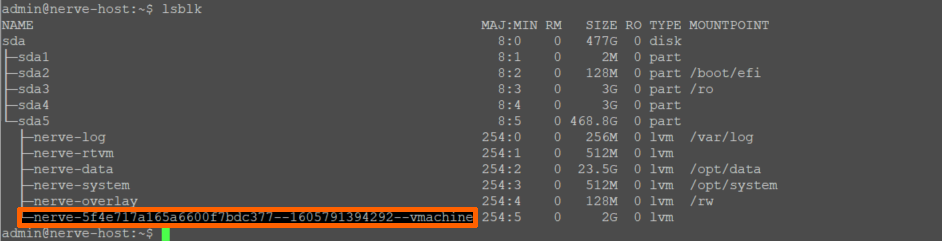
-
Enter the following command to remove the logical volumes:
sudo lvremove /dev/nerve/<volume-name> -y
Note
Note that the steps above can also be performed through a remote connection. Refer to Configuring a remote tunnel to a node for more information.
Log
Select Deploy > Log
to view the history of deployments. This includes:
- deployments in progress
- failed deployments
- successful deployments
It is displayed in reverse chronological order and can be filtered according to search criteria. It also offers some control functionality for active and failed deployments.
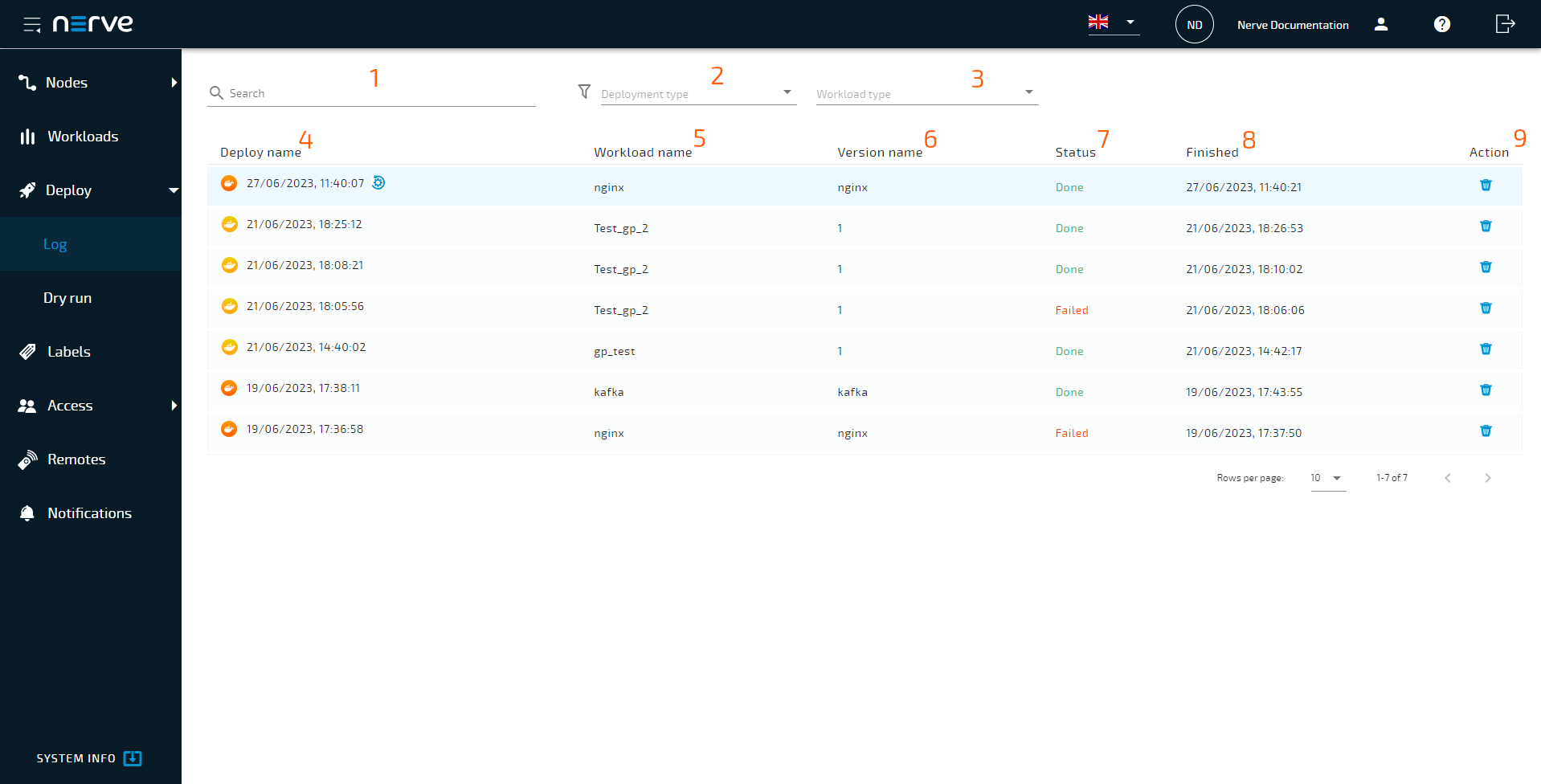
| Item | Description |
|---|---|
| Search by name (1) | Enter text here to filter the list by deployment name. |
| Workload type (2) | Select an option from the drop-down menu to filter the list for a specific workload type: VM, Docker, CODESYS or Compose. |
| Deploy name (3) | This is the name of the deployment with the workload type displayed as a symbol. The default is the time of deployment unless a deployment name has been entered during the deployment process. Note that this is not the name of the workload. |
| Workload name (4) | This is the workload name as defined during workload creation. |
| Version name (5) | This is the workload version name as defined during workload creation. |
| Status (6) | The status is an indicator for both progress and status. Depending on the status of the deployment the content changes:
|
| Finished (7) | This is the date and time the workload deployment was completed. The date format is DD/MM/YYYY. This field will display In progress if a workload is in progress of being deployed. |
| Action (8) | This column contains the Delete icon. Selecting this will remove the entry from the log. When a workload is in progress, this entry is grayed out. |
Deployment details
Selecting an entry in the log will show the details of the deployment.
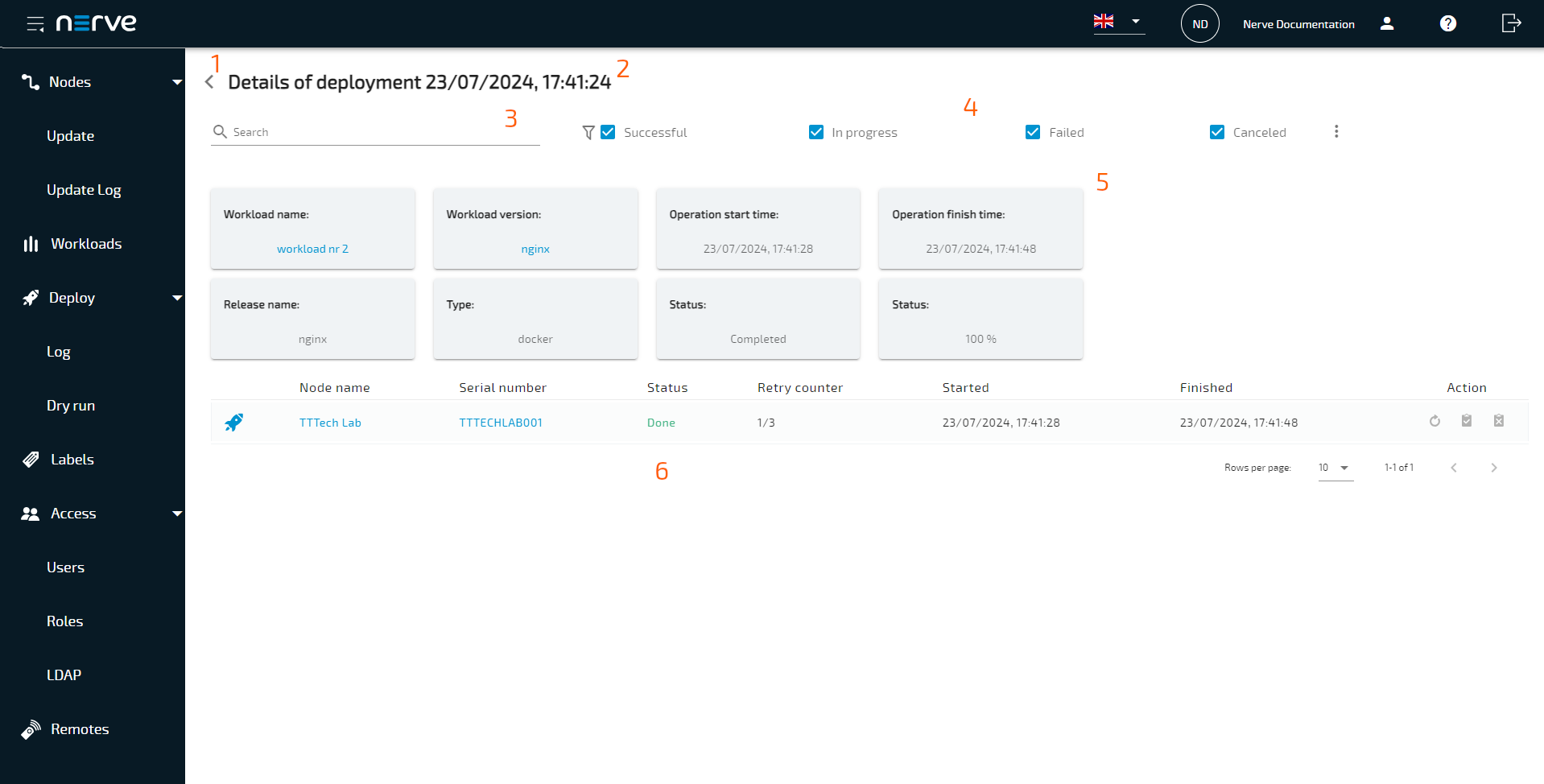
| Item | Description |
|---|---|
| Back button (1) | Select the arrow to return to the log. |
| Header (2) | The header states the name of the deployment in the format Details of deployment <deploymentname>. |
| Search (3) | Enter text here to filter the Operation task list by device name. The search function can be combined with the status checkboxes to the right of the search bar. |
| Status checkboxes (4) | The checkboxes to the right of the search bar filter the Operation task list by status:
|
| Deployment information (5) | This is information about the deployment.
|
| Operation task list (6) | The operation task list displays details for single deployments that are part of the deployment campaign. The list displays information in six columns:
|