System
The System section provides access to general information and insights about the Nerve Management System. It allows users to check for available updates, view usage reports, access management and audit logs, and retrieve details about the current installation status. These features help users understand the system’s state and maintain visibility into its operation.
Available updates
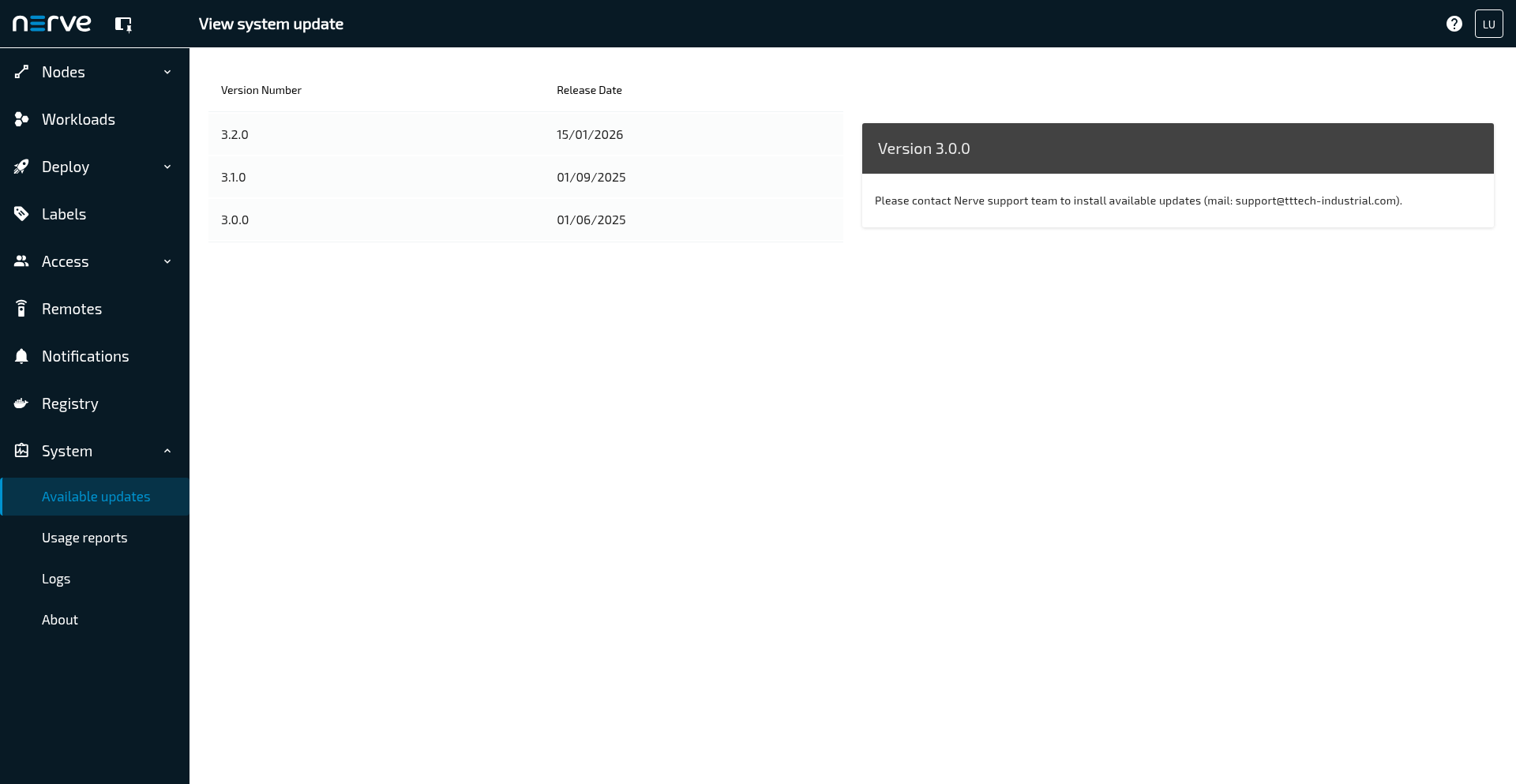
Select  System > Available updates to open the page View system updates.
This menu allows users to view available updates for the Nerve Management System. If an update is available, the Version Number and Release Date will be displayed here.
Updating the Management System
Updates of the Management System need to be performed by Nerve service technicians from version 2.3.0 on. Contact a sales representative or write an issue through the TTTech Industrial support portal. A backup of the current Management System is made when an update is performed. Reverting to the previous version is possible.
Note
Before updating to a newer version, make sure to back up any user created data, e.g. gateway configuration files in the Data Services.
Reverting the Management System to the previous version
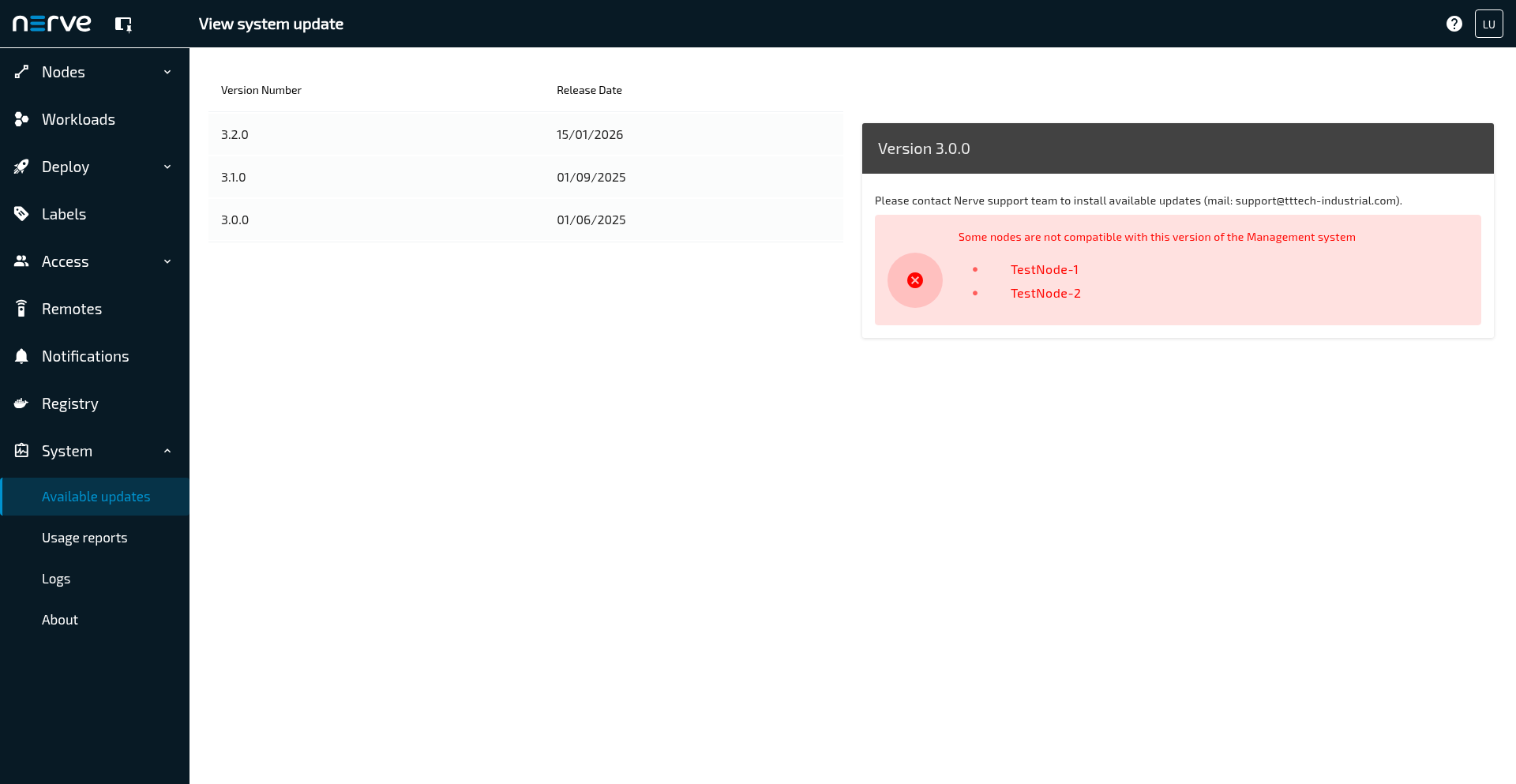
As it is the case with Management System updates, reverting the Management System to the previous version needs to be performed by Nerve service technicians. If the node a node is not compatible the message the following is message is shown on the page: Some nodes are not compatible with this version of the Management system
Downgrading the Management System to an older version is not possible.
Usage reports
Usage reports contain information about the usage of the Management System that is required for proper billing by TTTech Industrial. They need to be delivered monthly according to the contractual agreement. This can be done manually or automatically. Usage reports are compiled for each month and digitally signed for authenticity.
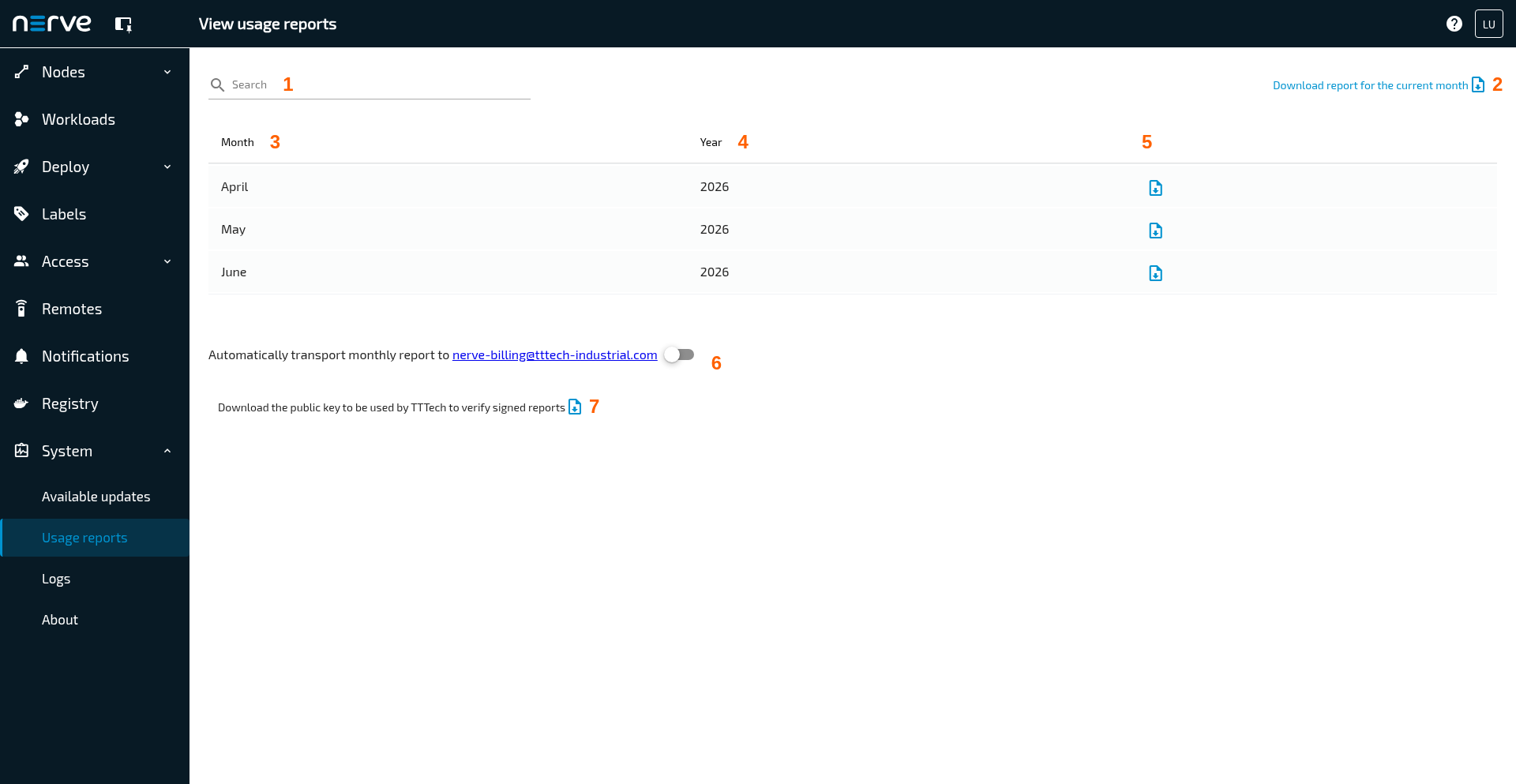
Select System > Usage reports to open the menu Usage reports.
| Item | Description |
|---|---|
| Search (1) | Use the search bar to filter the list of usage reports. The columns Month (3) and Year (4) are the targets of the search. |
Download report for the current month  (2) (2) |
Download a temporary report of the current month. It shows the following information:
|
| Months (3) Year (4) |
This is a list of the months and years the Management System has been in use. A new entry is created after every month including a finished usage report that can be downloaded. Select the download symbol on the right side of every entry to download the report of the listed month. The content of the reports are the following:
|
Automatically transport monthly report to nerve-billing@tttech-industrial.com (5) |
Toggle this slider to automatically transfer the usage report each month. If the automatic transfer is not activated, the usage reports need to be sent manually. |
| Download the public key to be used by TTTech to verify signed reports (6) |
If the Management System is hosted by TTTech Industrial, this step can be ignored. Download the public key that is required to verify the signature of the usage reports. Note that this key needs to be sent to TTTech Industrial once if the Management System is not hosted by TTTech Industrial or if usage reports are sent manually. |
Logs
Select System > Logs to open the menu System logs.
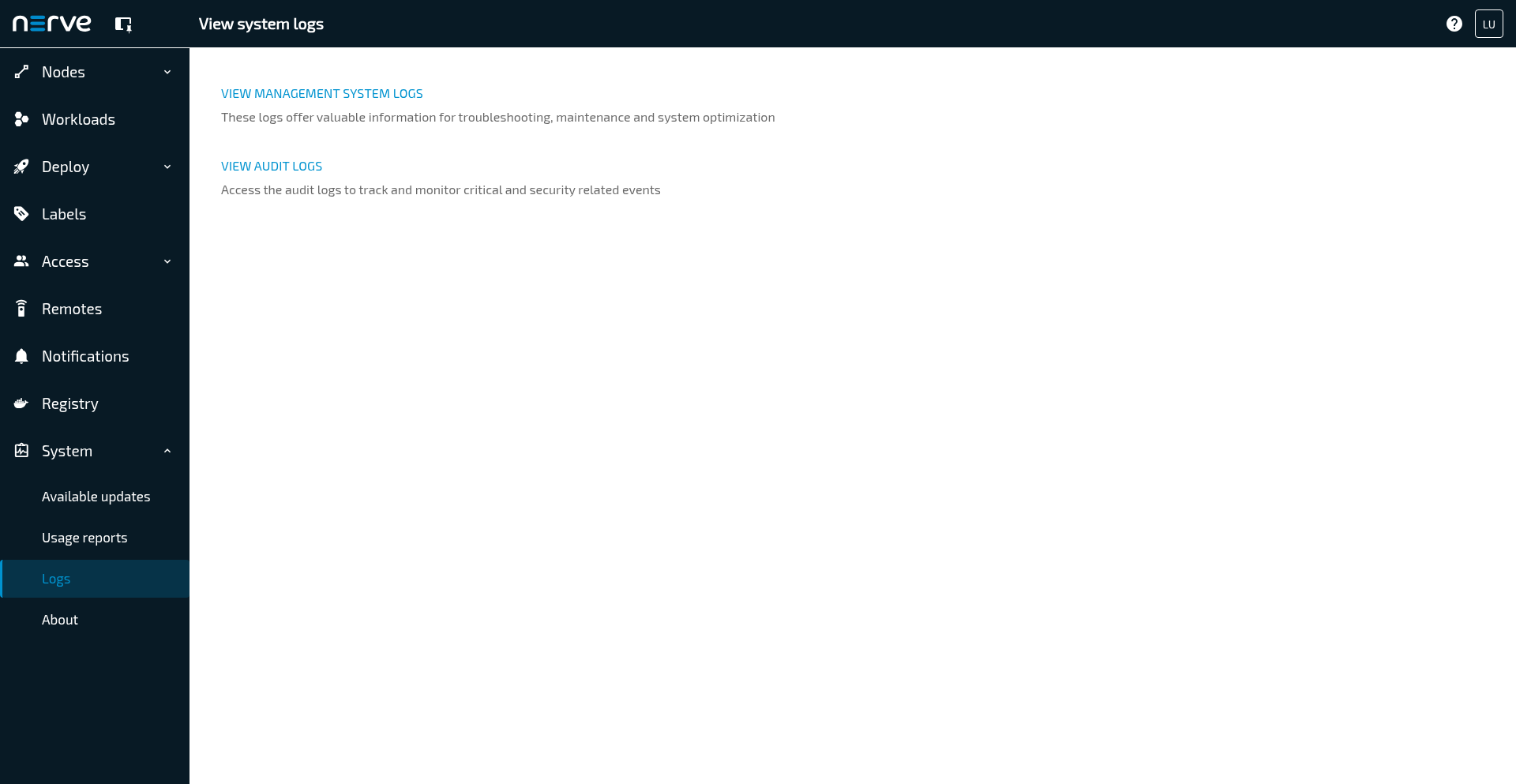
On this menu you can access to audit logs and Management System logs in OpenSearch Dashboard.
Select VIEW AUDIT LOGS to view audit logs for the Management System. For more information, refer to Audit logs for the Management System
Select VIEW MANAGEMENT SYSTEM LOGS to view Management System logs. For more information refer to Management System logs for more information.
About
Select System > About to display information about the current Version (1) of the Nerve Management System.
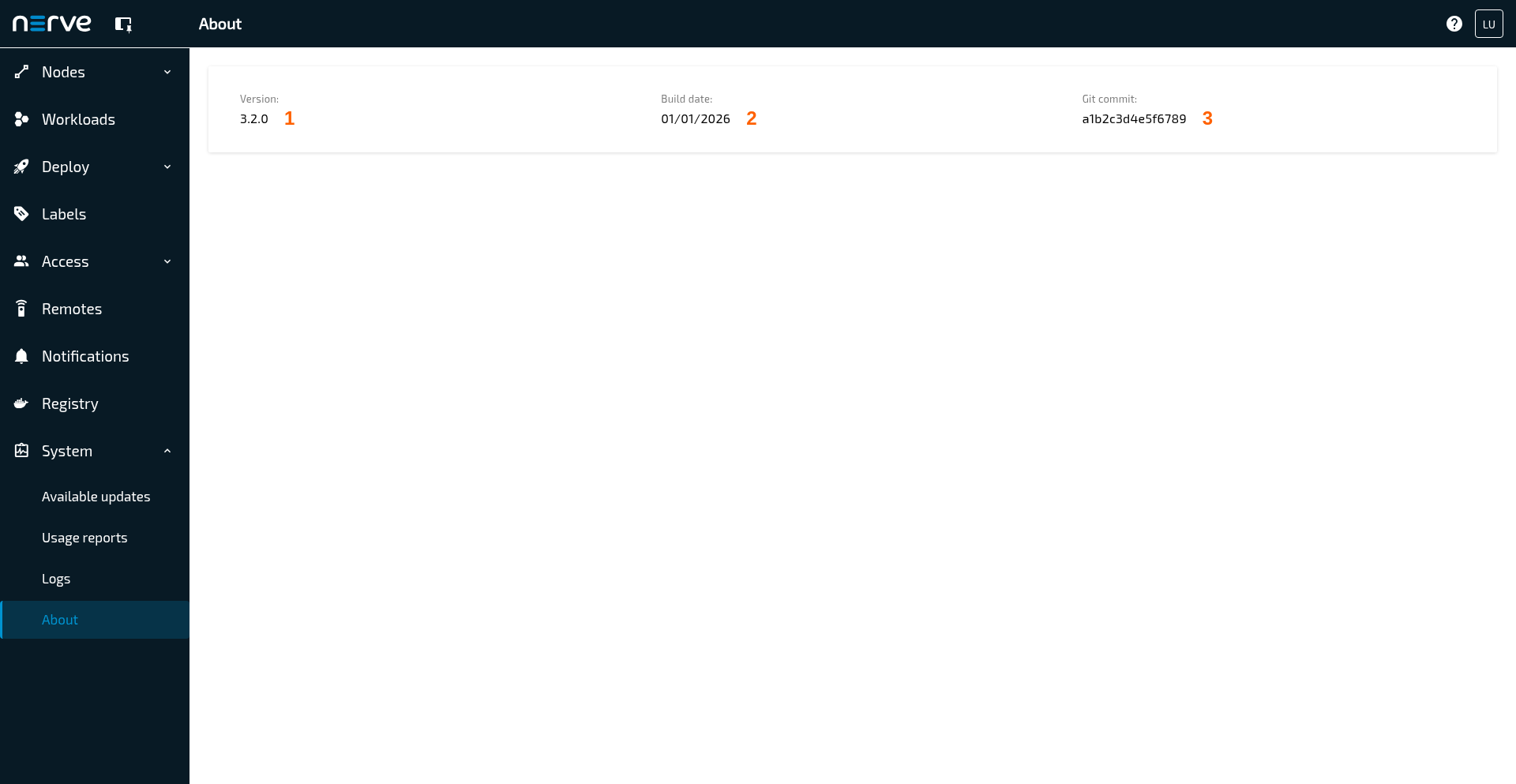
Furthermore, the Management System's Build date (2) and Git commit (3) are displayed.
This information can be used to recreate an exact copy of the instance in case of a critical error.