Nerve Management System
The Nerve Management System is a web-based service that permits management of registered Nerve nodes in the system. The Management System communicates through pop-up notifications in the upper-right corner. Success messages are displayed in green boxes. Red boxes are used for error messages, while light blue boxes are used for general notifications.
Note
- Google Chrome or Firefox Version 63 or later are recommended for the usage of the Management System.
- When using older versions of nodes, refer to the compatibility matrix in the release notes to make sure if the used version is fully supported in the current version of the Management System.
Logging in to the Management System
The Management System is either hosted by TTTech Industrial or installed on premise. The URL of the Management System changes accordingly. Find the URL of the Management System in the customer profile if it is hosted by TTTech Industrial.
Note
The Management System has brute force login protection in place. Five failed login attempts in a row will block the current user from logging in again from the same IP address for 30 minutes. After a hundred failed log in attempts from one IP address, the IP address will be blocked for 24 hours.
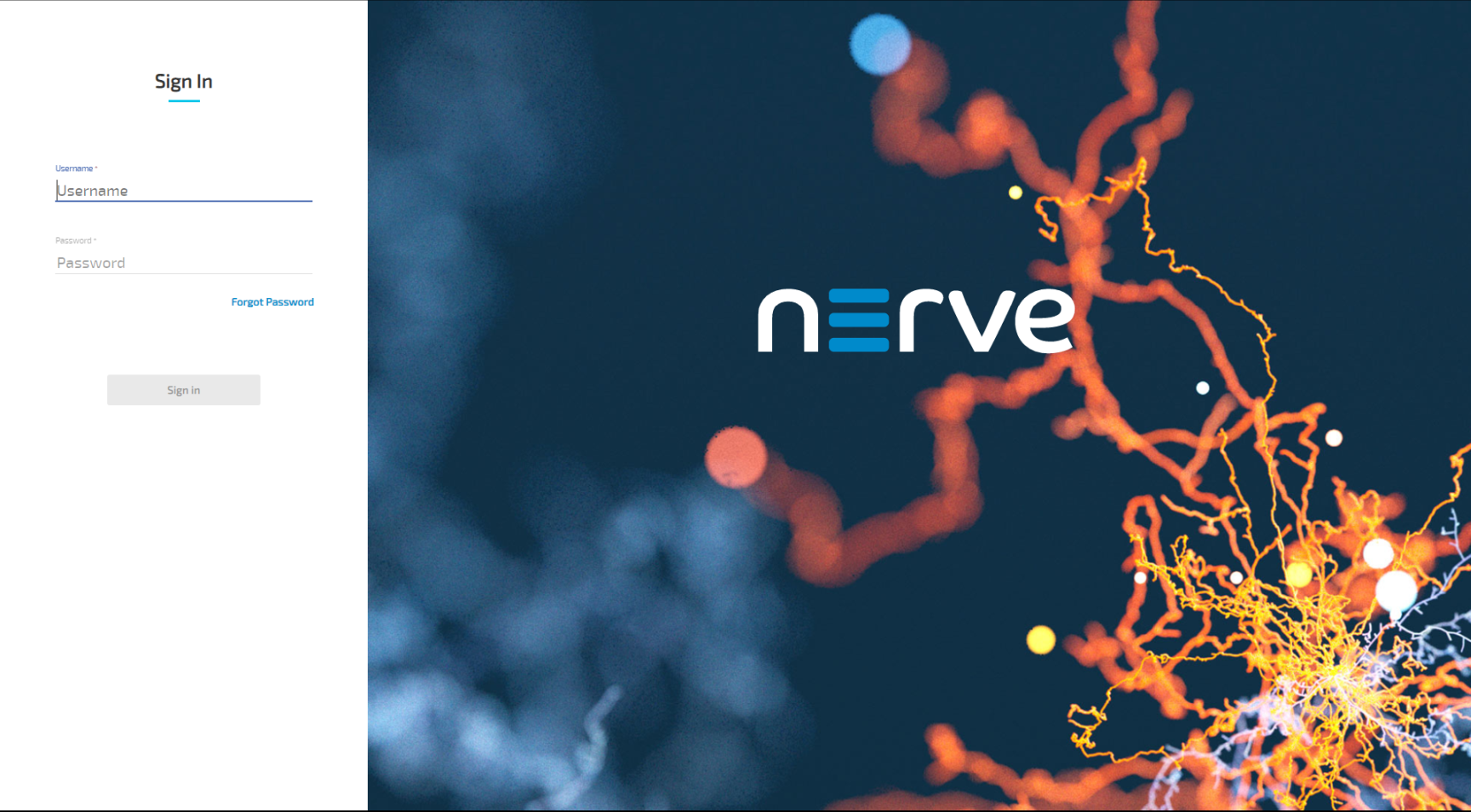
- Go to the URL of the Management System.
-
Log in with the credentials for the Management System.
Note
The initial login credentials of the Management System can be found in the customer profile. If a customer profile has not been part of the delivery, contact a sales representative or write an issue through the TTTech Industrial support portal.
Note
As of version 2.9.0, the Management System supports Multi Factor Authentication (MFA) for an increased level of security. Users will need an authenticator app on their mobiles to successfully log in. See the Multi Factor Authentication documentation for more information..
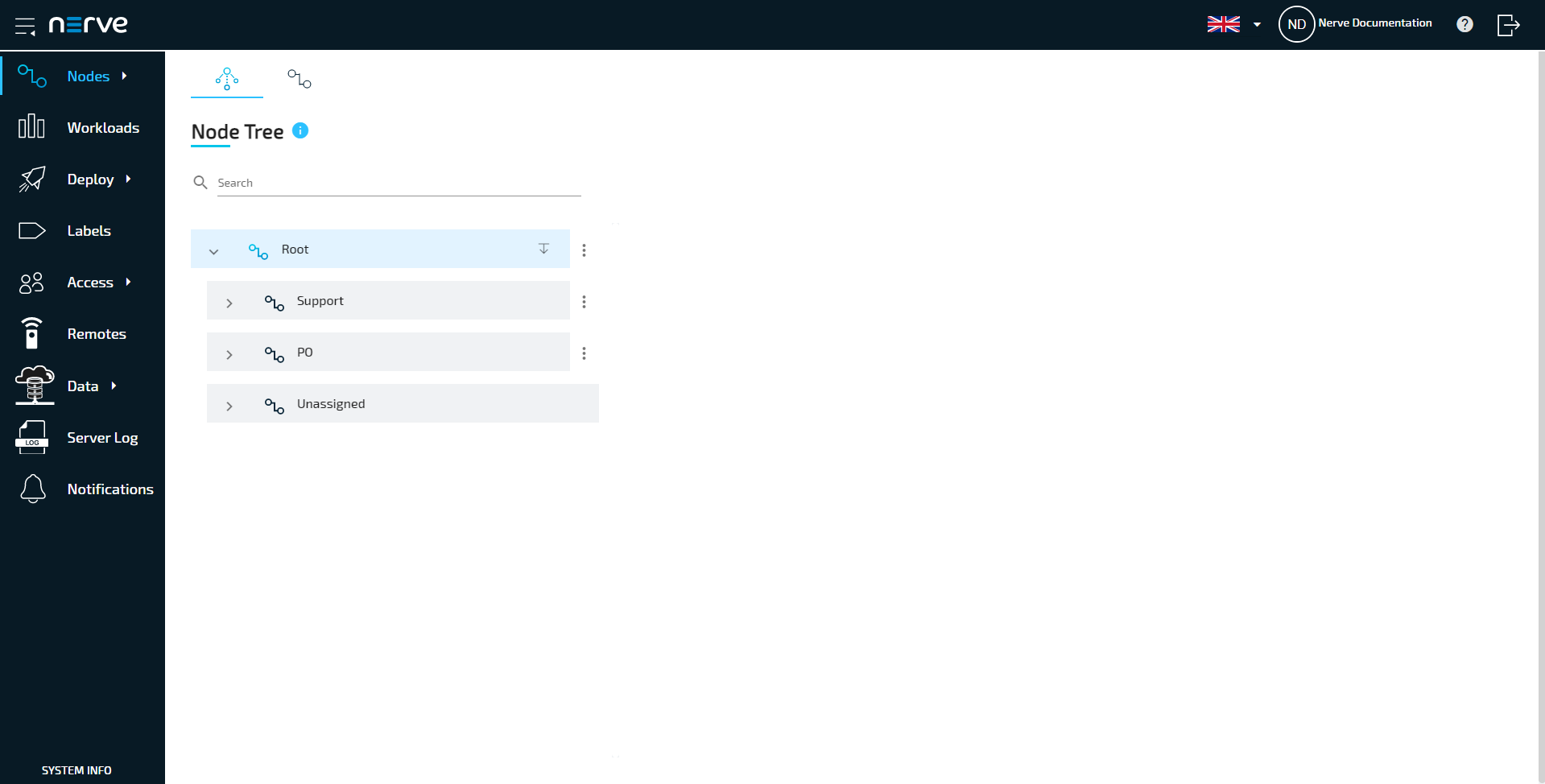
The page View nodes is the landing page of the Management System. Note that after 30 minutes of inactivity, users are logged out automatically.
Menu structure of the Management System
As a landing page the Management System shows the page View nodes. Navigate to the page by using the menu bar on the left side.
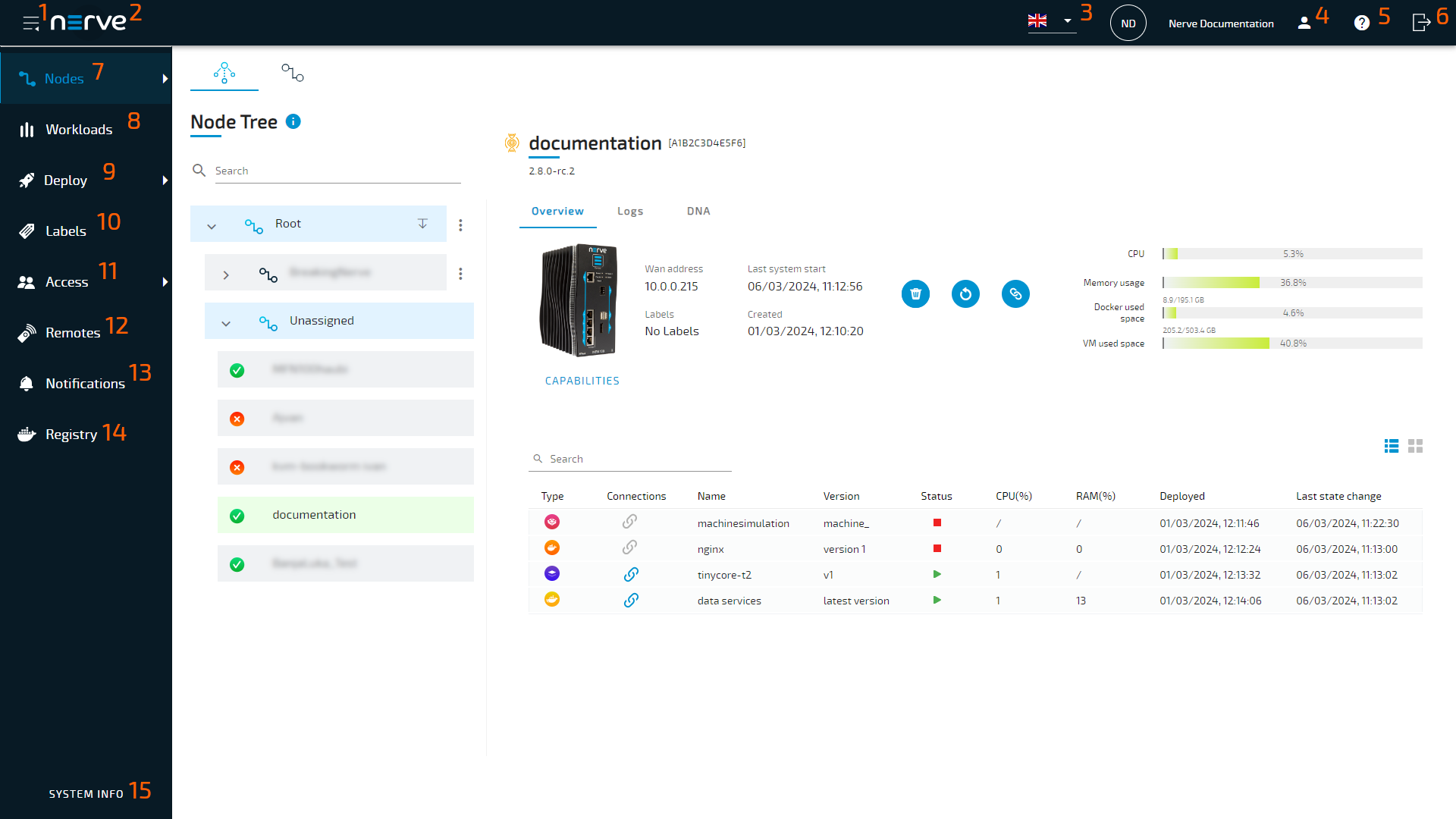
| Item | Description |
|---|---|
| Nerve logo (1) | Select the nerve logo, to return to the View nodes page. |
| Menu (2) | Selecting this icon will expand and collapse the menu bar on the left side. The expanded version of the menu adds names to the menu icons. |
| Page name (3) | This is the name of the page you are currently viewing. It helps you identify where you are in the menu structure. |
| User icon (4) | Access the user settings or log out the active user from here. |
| Help (5) |
|
| Nodes (6) | The nodes menu has three sub-menus in the navigation on the left. This is the default view of the Management System. It displays all registered nodes in a node list. Manage elements freely by adding, deleting, filtering, and moving them. It mainly serves an organizational purpose and does not impact the functionality of the nodes. Nodes and workloads can be managed in the node details view, which is reached by selecting a node. For more information, refer to Nodes. Available updates for nodes can be found here. Past node updates can be viewed here. When an update is performed, this view also shows the current progress of the update. |
| Workloads (7) | All workloads that have been provisioned in the Management System are listed here. Workloads can be added, deleted, disabled and edited through this menu. New versions of workloads can also be added here. For more information, refer to Workloads. |
| Deploy (8) | Previously provisioned workloads can be deployed by selecting Deployment. Select Log to view a list of all workloads that have been deployed or are currently being deployed. You can also view deployment details and delete log entries from the list. For more information, refer to Deploying a workload. |
| Labels (9) | This is a list of all labels that have been defined in the Management System. Add, delete, edit and merge labels here. For more information, refer to Labels. |
| Remotes (10) | Currently active remote connections are displayed here. Refer to Remote Connections for more information. |
| Notifications (11) | Set user-defined system notifications here. A notification can be set to display either before or after logging in using this menu. For more information, refer to Setting system notifications. |
| Registry (12) | This is a list of all Docker workloads that have been defined in the Management System. Check or delete the Docker workloads here. For more information refer to Docker Registry. |
| System (123) | The System section provides access to general information and insights, such as logging and monitoring, for the Nerve Management System. For more information, refer to System. |

Note
The available features of the Management System depend on the user role. Refer to Roles and Permissions for more information.
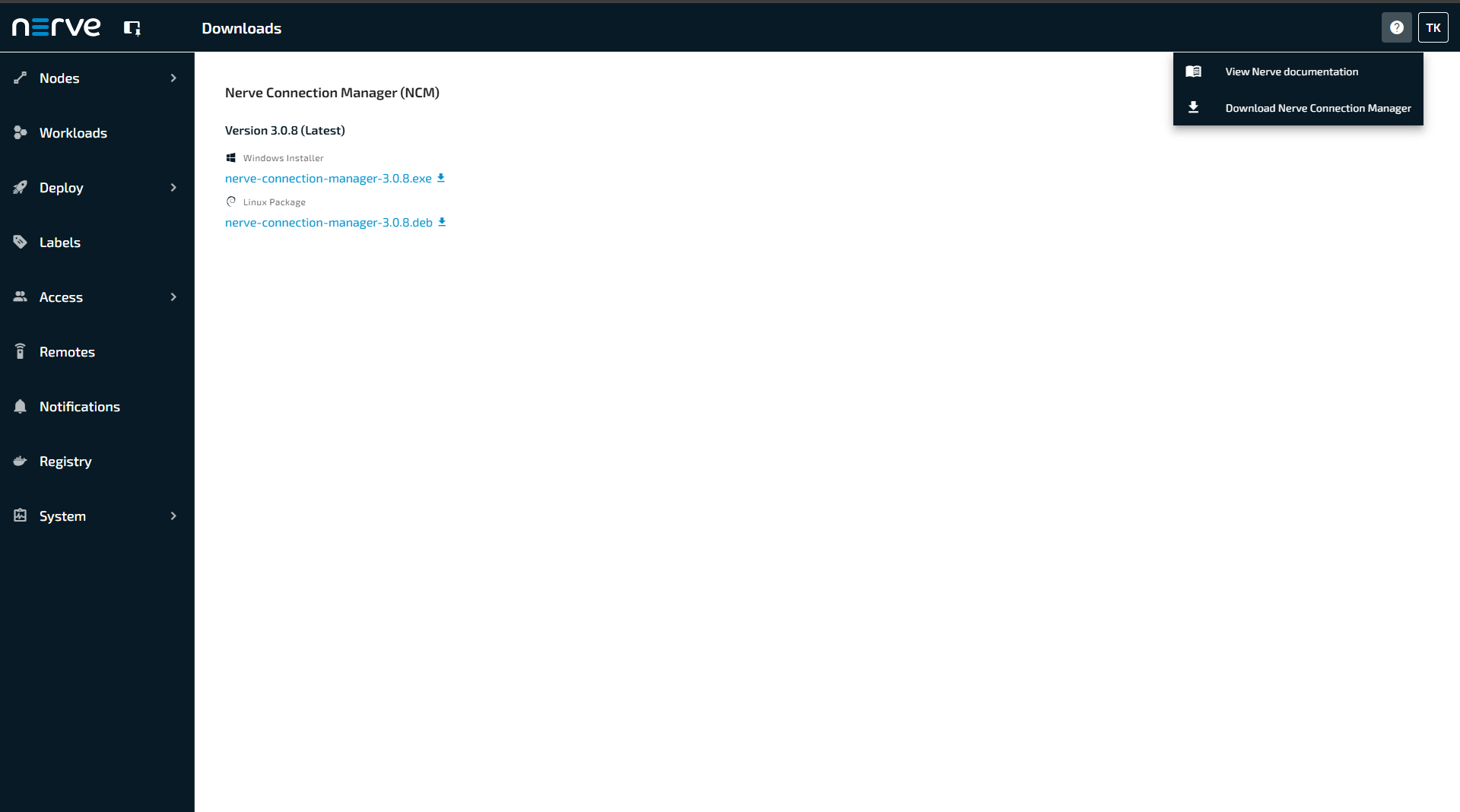
Download the Nerve Connection Manager (NCM)
The Nerve Connection Manager (NCM) is an application used to manage remote connections and supports features such as audit logging within the Nerve Management System.
The latest versions can be downloaded directly from the downloads page.
- Select the Help icon
 .
. - Select the Download icon
 .
. -
Download the Nerve Connection Manager for your operating system, either Windows or Linux.
Setting system notifications
User-defined system notifications can be set for the Management System. Notifications are displayed as a pop-up, consisting of header and body text. Multiple notifications can be defined. However, only one message at a time can be active. Notifications are displayed for every user either before or after logging in to the Management System. No notifications are set by default.
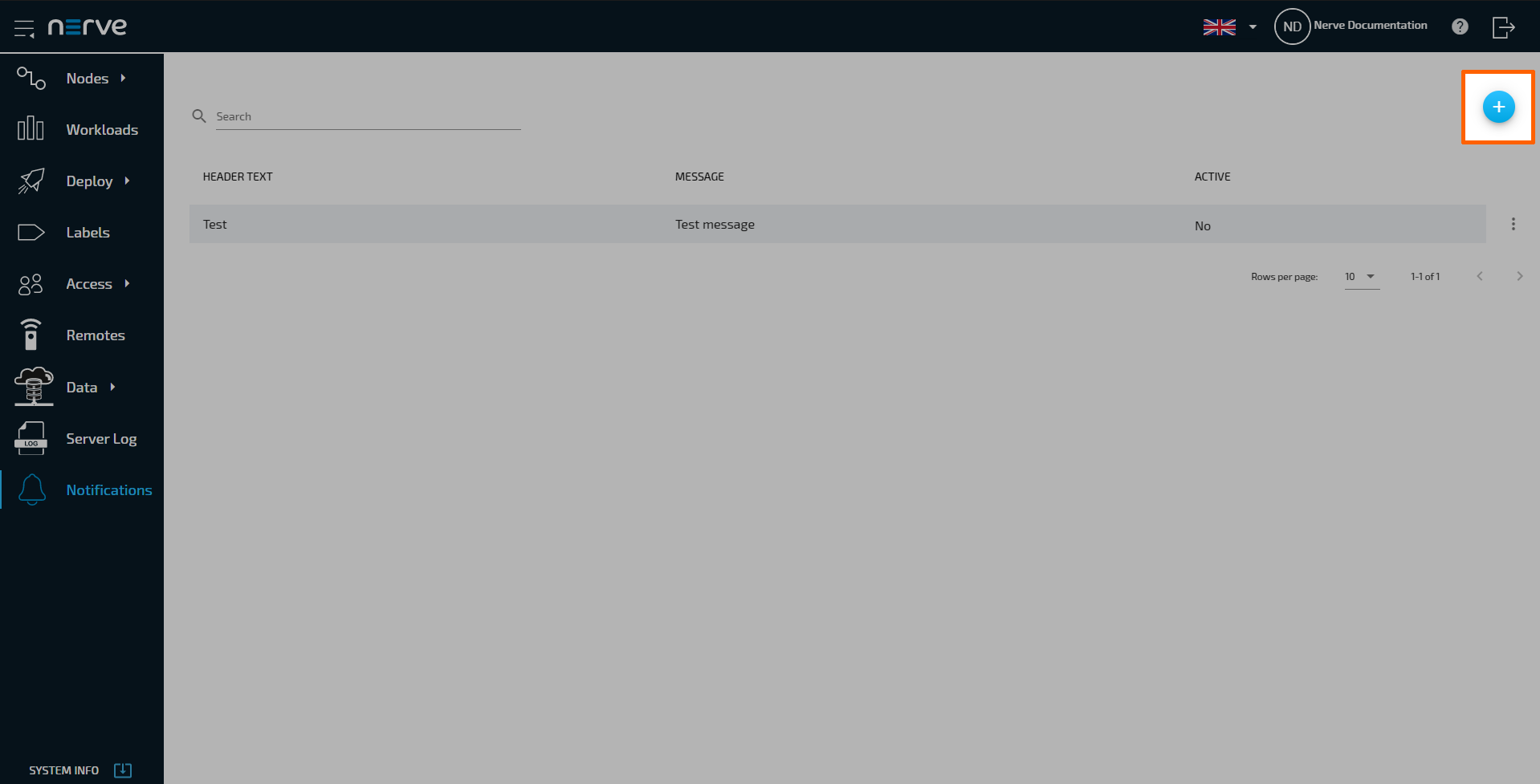
- Select Notifications in the navigation on the left.
-
Select the plus symbol in the upper-right.
-
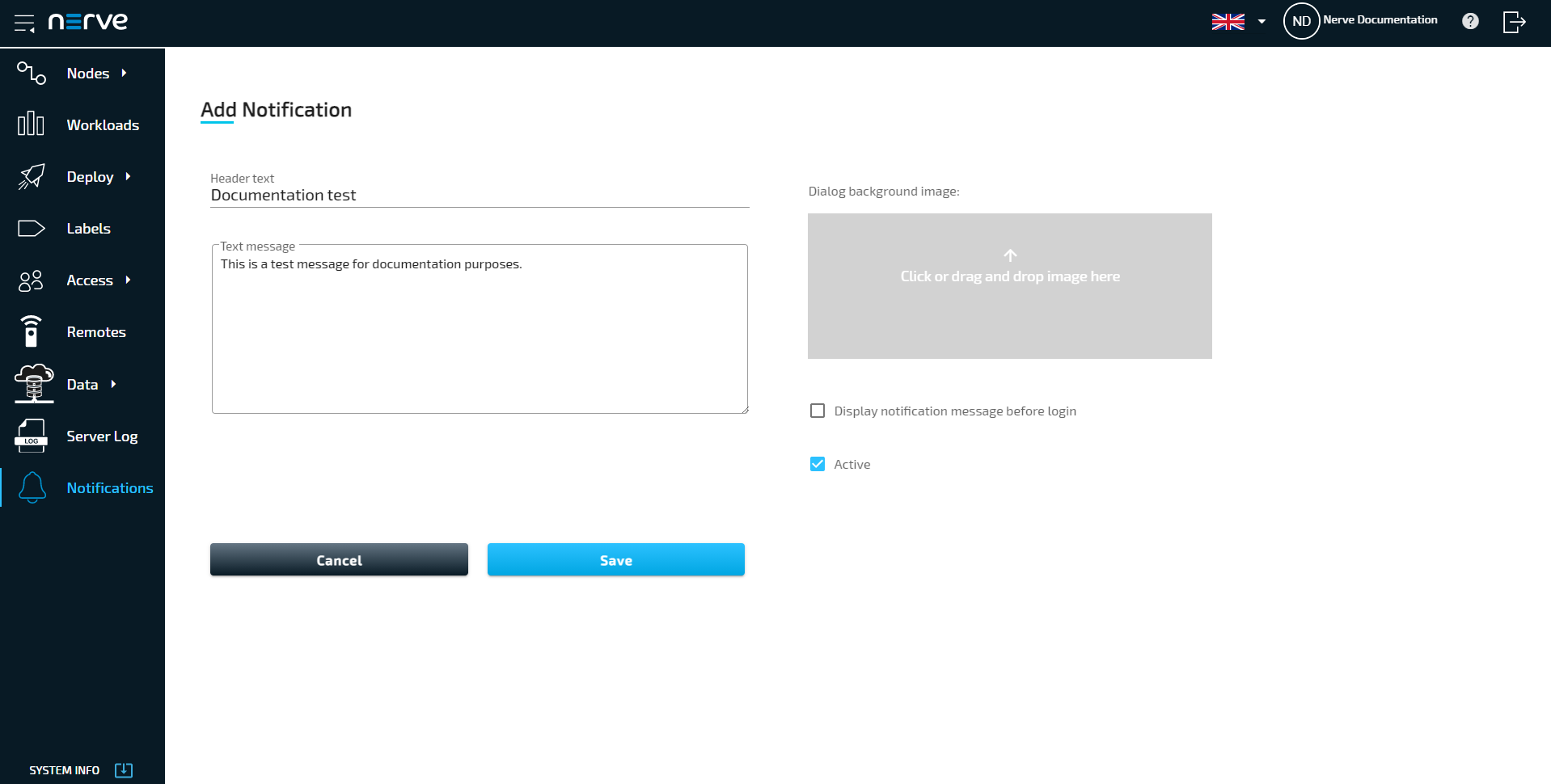
Enter the following information:
Setting Description Header text Enter the header text of the notification pop-up. This text has a limit of 60 characters. Text message Enter the body text of the notification pop-up. Digital background image Add a background image to the notification pop-up. Supported formats are JPEG, PNG, JPG, JFIF, PJPEG and PJP.
Note that the image will be stretched to fit the entire pop-up, including header and body.Display notification message before login Tick the checkbox here to have the notification displayed before logging in. If this checkbox is not ticked, the notification is displayed after logging in. Active Tick the checkbox here to set the current notification as active. Doing so deactivates all other notifications. Untick the checkbox to deactivate the notification. Note that this also deactivates notifications in general until another notification is set to active. -
Select Save to save the notification settings.
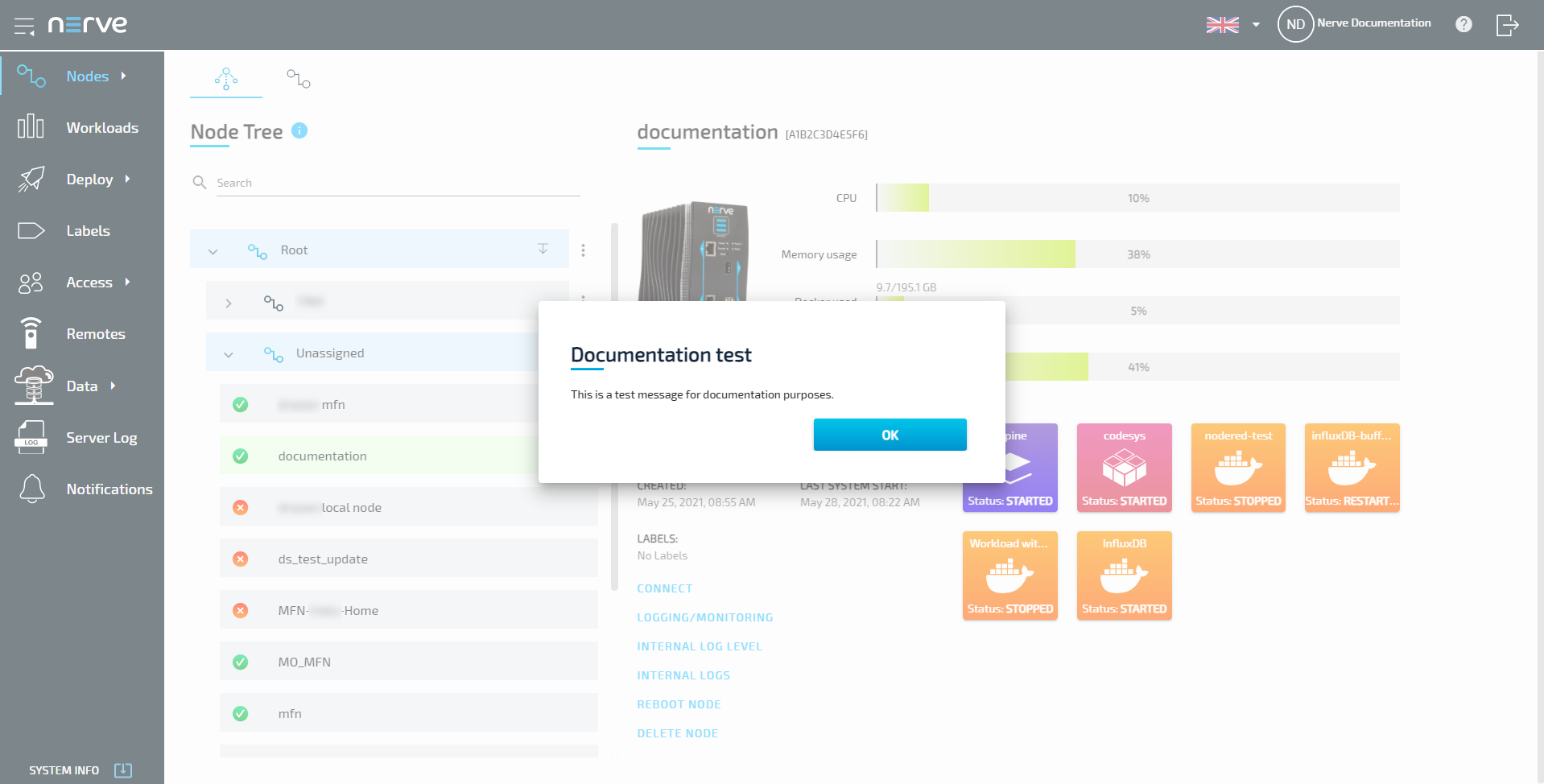
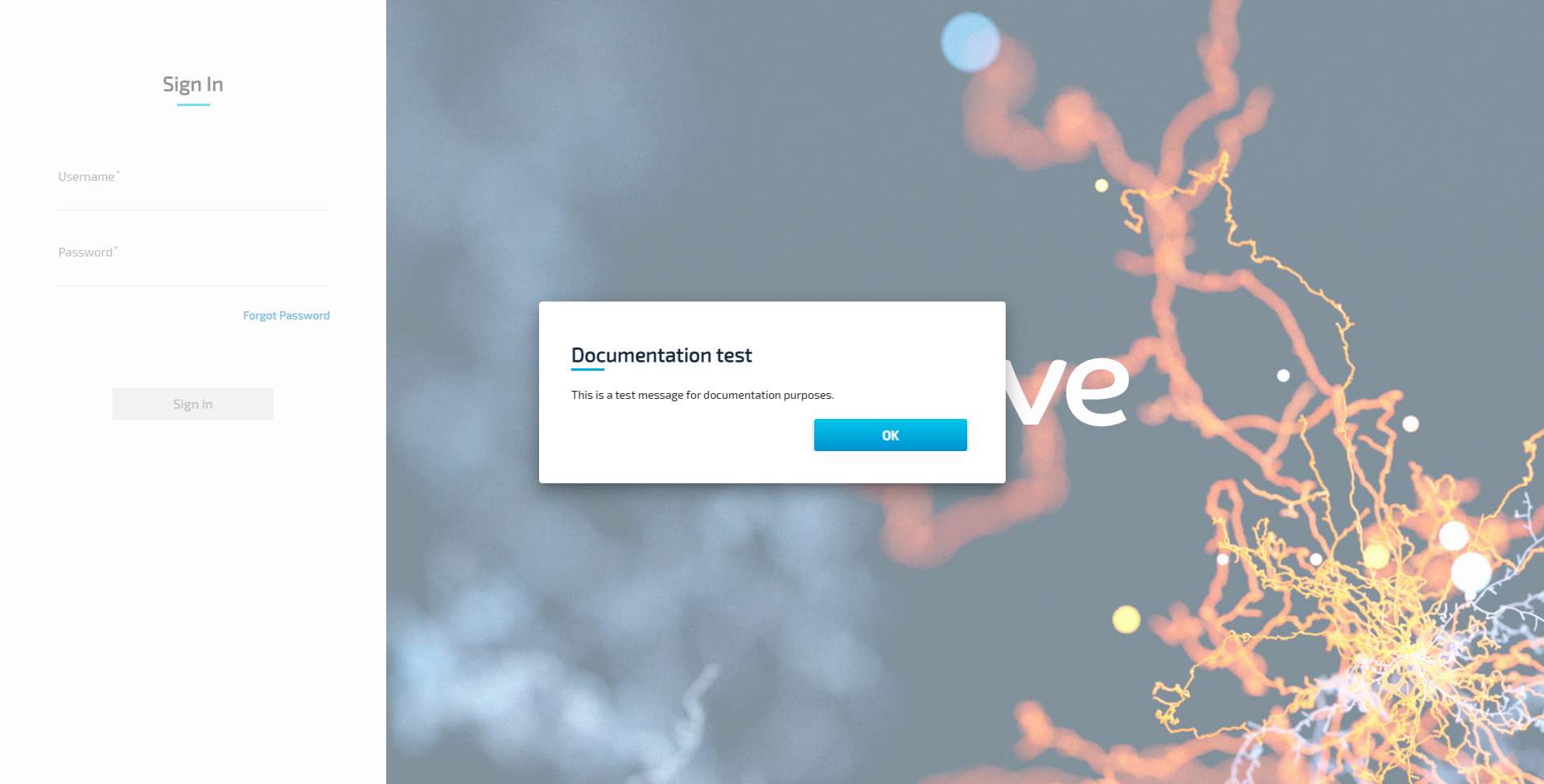
The notification now appears in the list of notifications. The list is split into three columns: HEADER TEXT, MESSAGE and ACTIVE. Select DELETE from the ellipsis menu to the right of a notification to delete a notification. Refer to the screenshots below for examples of notifications in use:
-
Before logging in
-
After logging in