Provisioning a CODESYS workload
Before a CODESYS workload can be provisioned, a CODESYS application has to be loaded into the CODESYS runtime first. Refer to First steps with CODESYS first before continuing.
Once a CODESYS application has been loaded into the CODESYS runtime, the following steps have to be taken before the workload can be provisioned:
- Creating the ZIP file of the CODESYS application
- Transferring the ZIP file to a local workstation
Also the workstation needs to be connected to the physical port of the Nerve Device associated with host access, and the network adapter IP address of the workstation needs to be configured in the correct range. This information is device specific. Refer to the device guide for information on the Nerve Device.
Creating the ZIP file on the Nerve Device
First, the CODESYS project needs to be zipped on the Nerve Device before it can be copied from the CODESYS runtime. This is done through the Local UI.
- Follow the link to the Local UI of the used Nerve Device. Refer to the device guide for more information.
- Select Workload management in the navigation on the left.
-
Select Download CODESYS app archive.
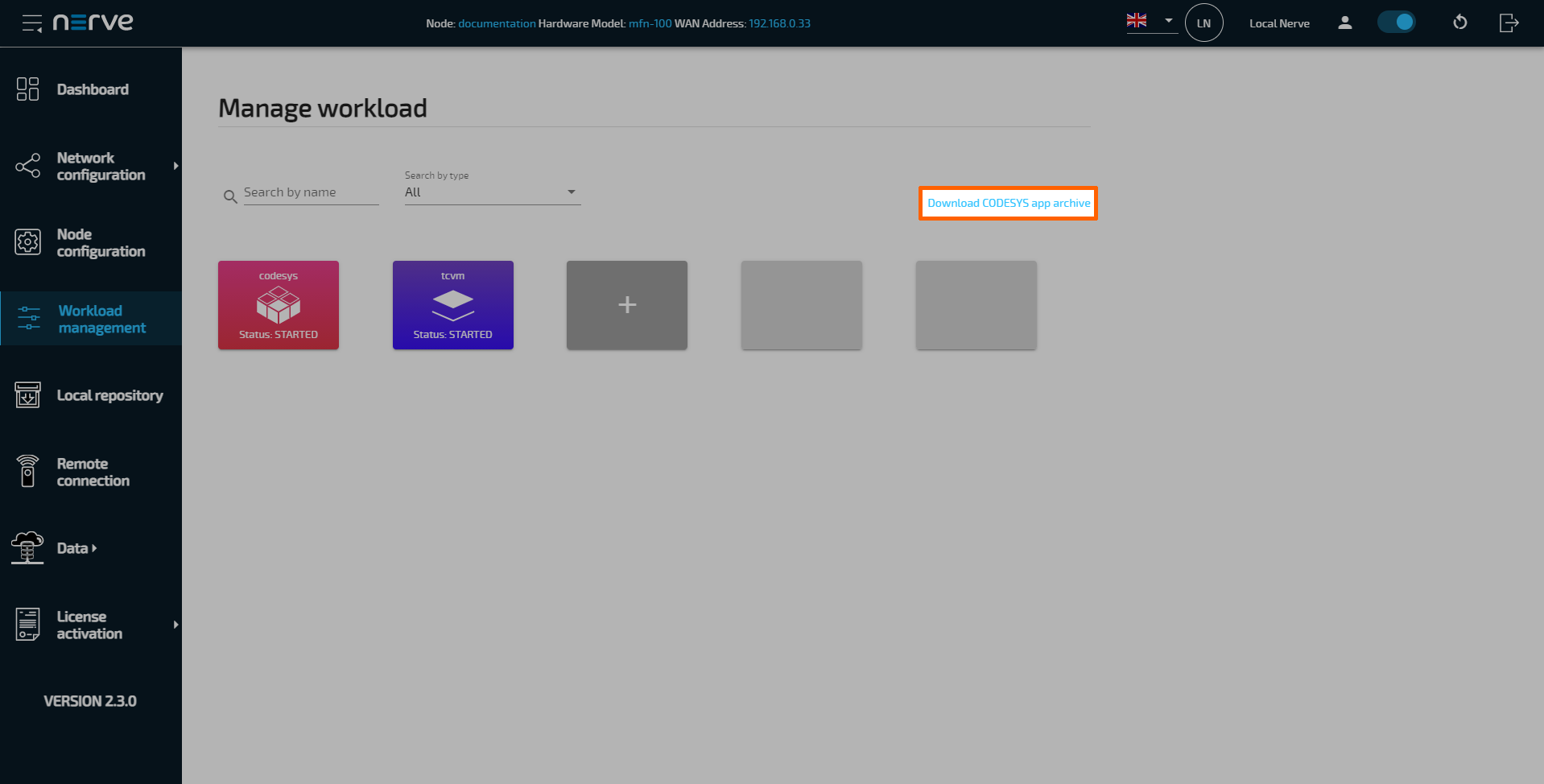
-
Select YES in the pop-up. Note that the CODESYS application will be stopped.
The ZIP file is automatically downloaded to the workstation and a CODESYS workload can now be provisioned in the Management System.
Provisioning a CODESYS workload
The following instructions only cover the required settings for provisioning a CODESYS workload. Optional settings will be left out. Extended options are addressed in the last section of this chapter. However, note that some of these settings are necessary to provision a functioning workload. Make sure to understand the workload and its purpose before provisioning a workload.
Other workload types that can be provisioned are:
The process for each workload is highlighted in its respective chapter.
- Log in to the Management System.
- Select
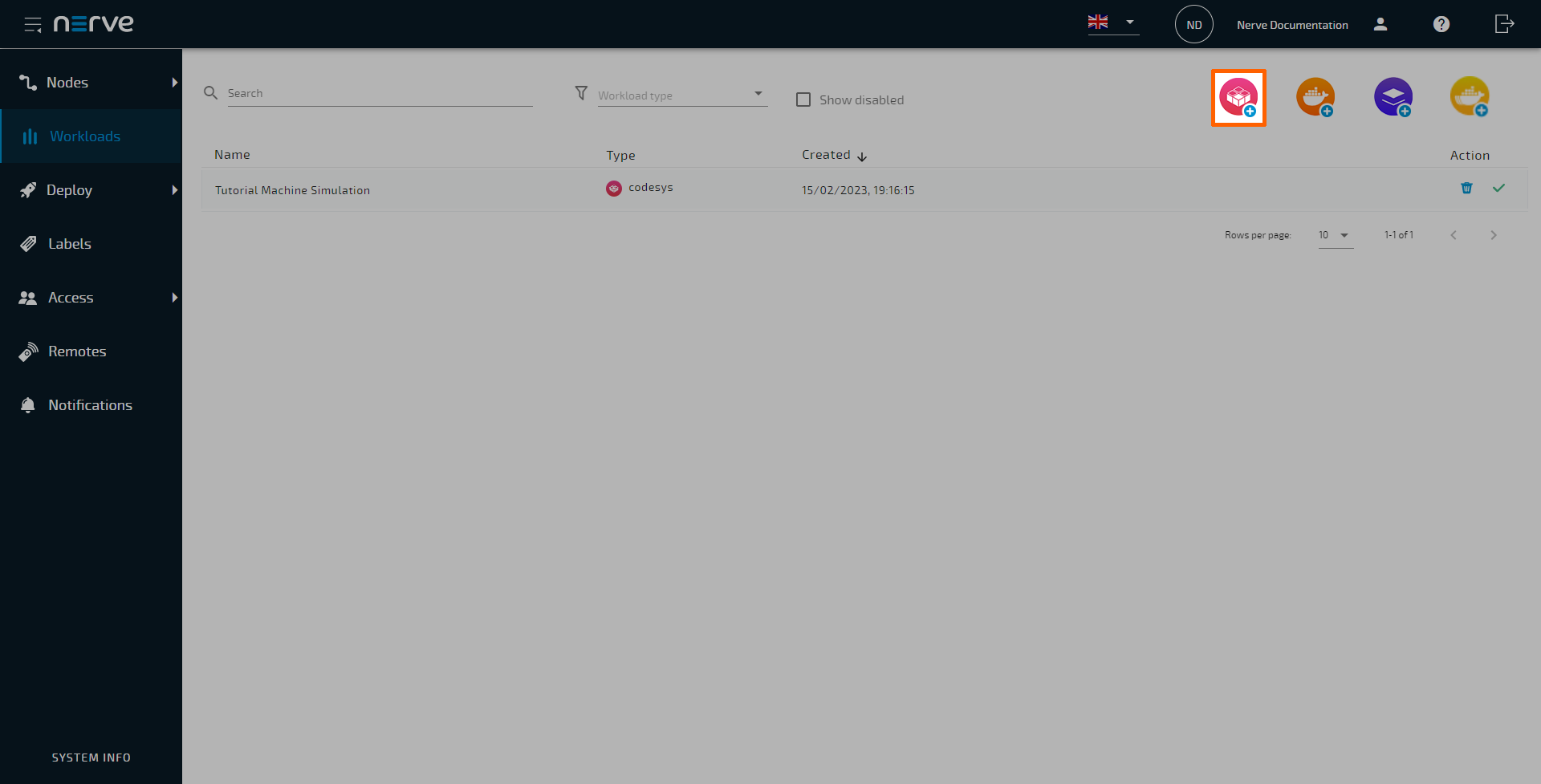
 Workloads in the navigation on the left.
 -
Select the CODESYS symbol (Add new Codesys workload) in the upper-right.
-
On the next page, enter the Name and a Description for the CODESYS workload.
-
Select the
 plus icon next to Create versions to add a new version of the workload.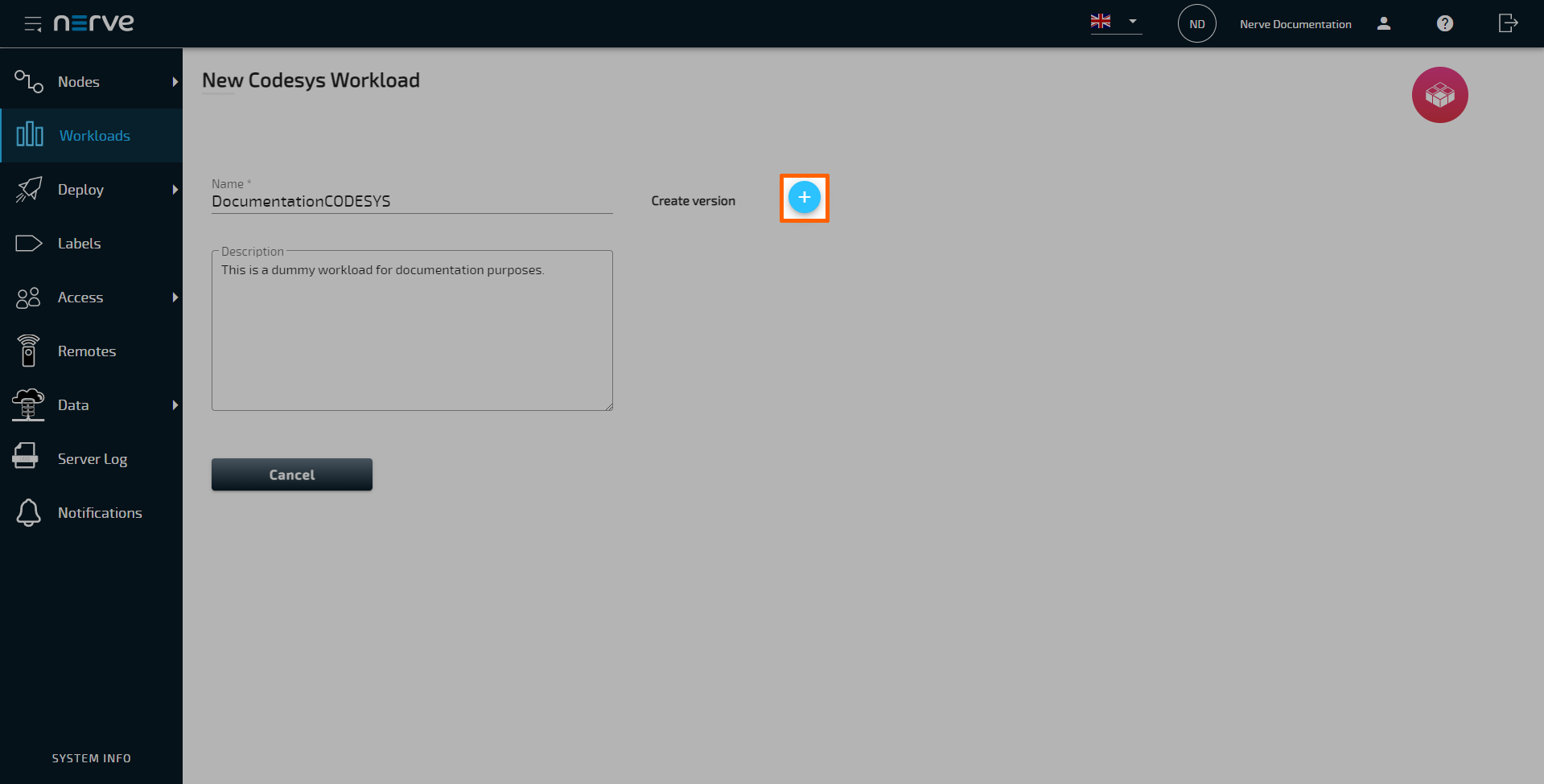
-
In the Basic tab on the next page, enter the following information:
Setting Description Version name Enter a name for the version of this workload. Selector Assign labels to the workload. CODESYS project file Select the  upload icon to add the CODESYS application ZIP file.
This is the ZIP file that was created above.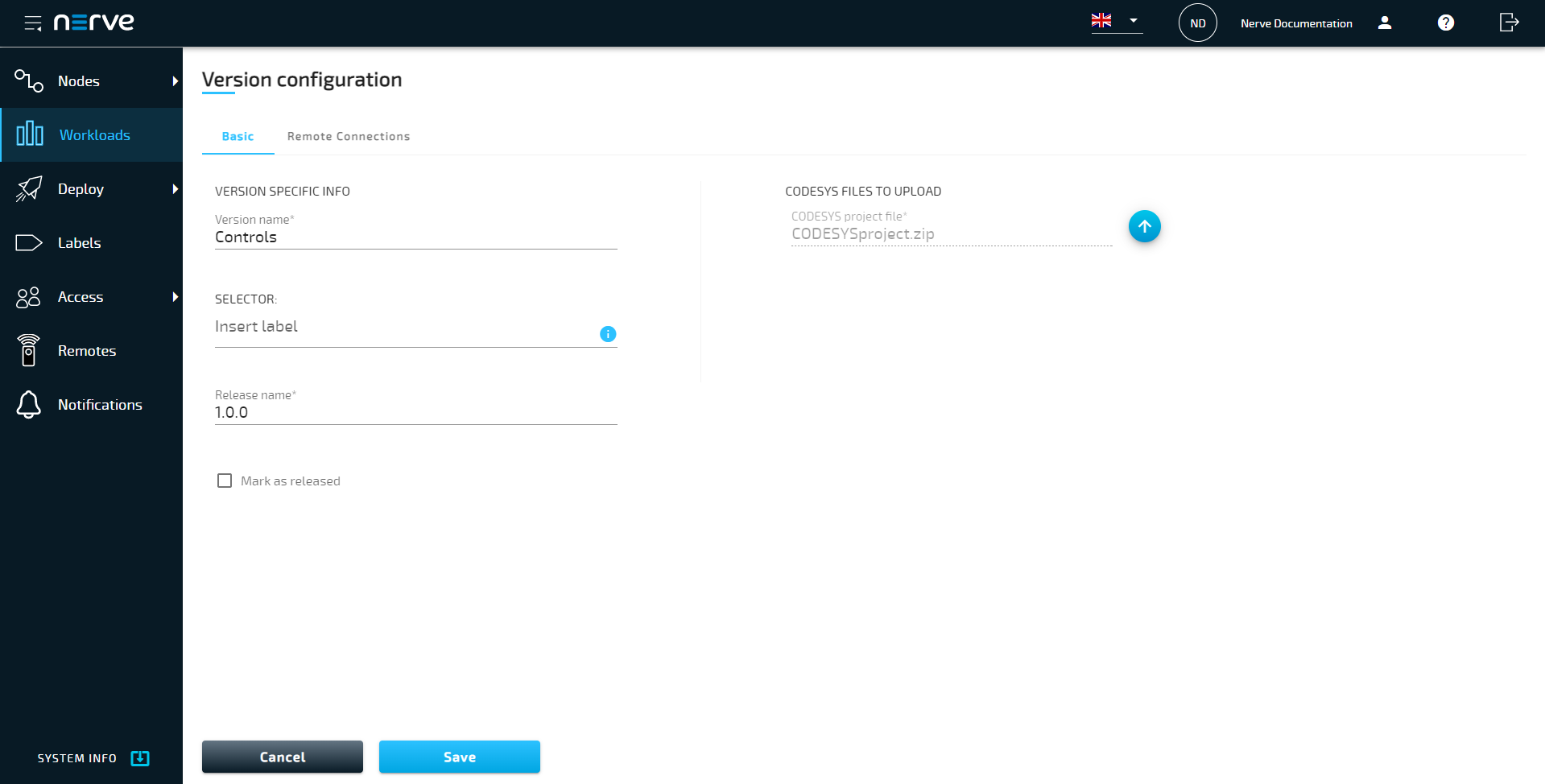
-
Select Save.
The workload has now been provisioned and is ready to be deployed in  Deploy > Deployments, refer to Deploying a workload. For more information on how to control the workload after deployment and use workload specific features, refer to Workload control.
Settings for CODESYS workloads
In the instructions above, optional settings have been left out. Below is an overview of all options with an explanation to each option.
Basic tab
| Category | Settings and descriptions |
|---|---|
| Version Specific Info | Version name A name for the workload version. Choose a precise name to make the workload version unambiguous. Selector If labels have been defined and assigned to nodes, add them as selectors to the workload. When deploying a workload, the list of nodes will be filtered automatically to the specified label. Select the Insert label field to see a list of available labels. Mark as released Tick this checkbox to mark this workload as released. Once marked as released, the workload cannot be edited anymore. |
| CODESYS FILES TO UPLOAD | Upload the CODESYS project file here. This is a ZIP file that has to be generated from a CODESYS project running in the CODESYS runtime. Upload it here by selecting the upward arrow symbol to open the file browser. |
Remote Connections tab
| Category | Settings and descriptions |
|---|---|
| REMOTE CONNECTIONS | Select the Remote Connections tab to configure a remote connection to the workload. Note that CODESYS workloads can only be reached with remote tunnels. Refer to Remote connections for more information and instructions for all remote connection types. |