Labels
Labels are a useful feature that help with the organization of nodes and workloads. They can be defined and used freely. All labels that have been created are listed in the labels menu.
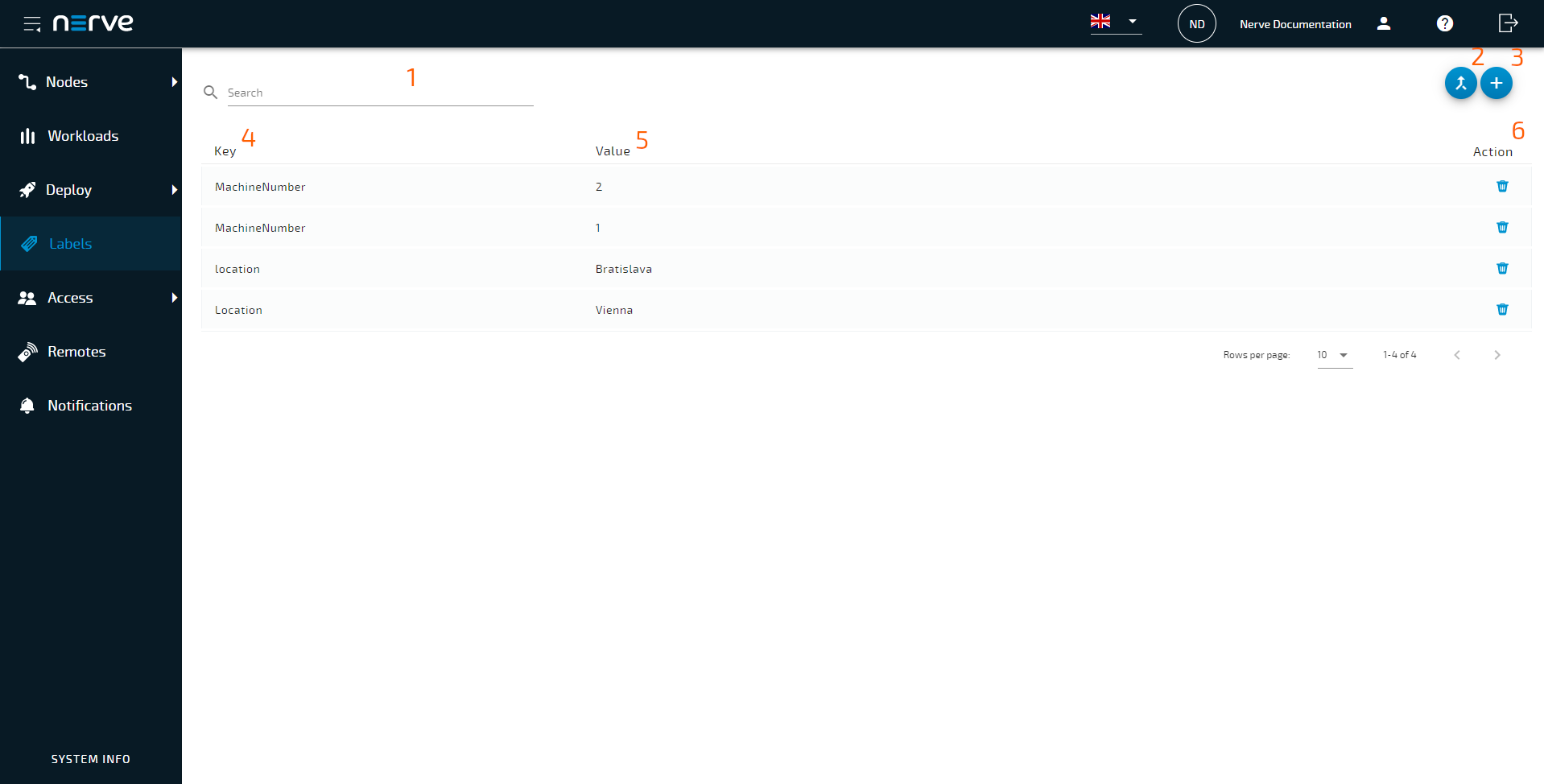
| Item | Description |
|---|---|
| Search bar (1) | Use the search bar to filter labels by key. |
| Merge labels (2) | Select this to merge existing labels. |
| Add new label (3) | Select this to add a new label consisting of label key and label value. |
| Key (4) | This is the key of the label. It can be understood as the "category" of the label. Examples of label keys are location, machine number or hardware. |
| Value (5) | This is the value of the label. It corresponds to the key of the label. Examples are Vienna, Machine 1 or MFN 100. |
| Action (6) | This column contains icons representing different actions. Here, it contains a garbage can icon for deleting labels. |
Adding a new label
Labels can be defined with any key and value. Note that labels are displayed in the <key>:<value> format in the Management System. The key of a label can be understood as the category of a label with the value being an item in that category. Example: Location:Vienna.
- Select
 Labels in the menu on the left side.
 - Select the Add new label icon
 in the upper-right corner.
 -
Enter or choose the following information:
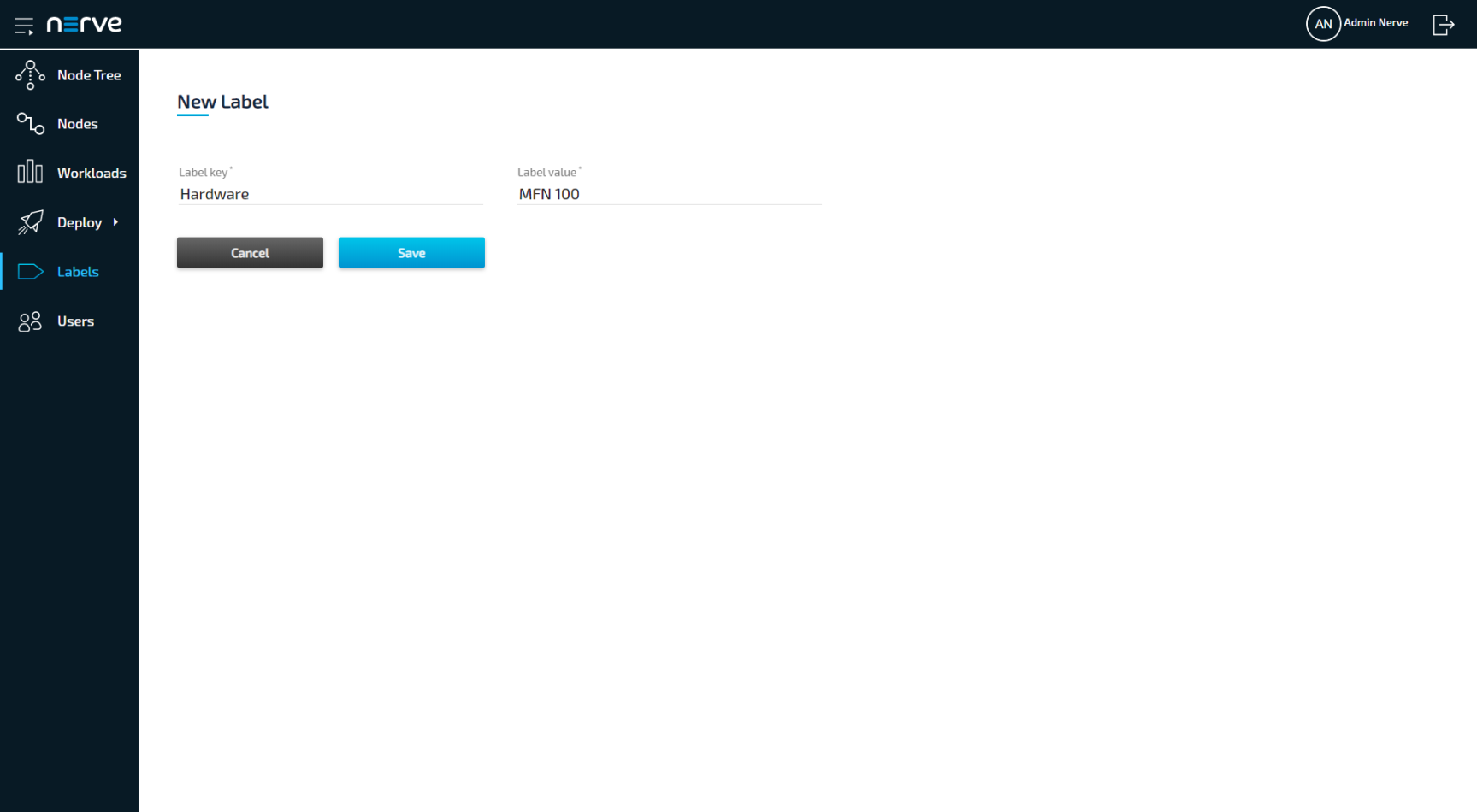
Item Description Label key (1) Enter the "category" of the label or select an existing one from the drop-down menu. For example: Hardware. Label value (2) Enter the value for the label here or select an existing one from the drop-down menu. Example: MFN 100. Note
Label keys must consist of one word only. Use
-and_as separators.
Also, only use alphanumeric characters (a-z,A-Z,0-9) and underscore (_). Any other special characters are not allowed. -
Select Save to add the new label.
The label now appears in the label list and can be used in the Management System. Labels can be assigned to nodes when node details are edited. For more information refer to Assign labels to a node.
In the workload provisioning process they can be chosen as selectors. For more information refer to Adding labels to a workload.
Editing a label
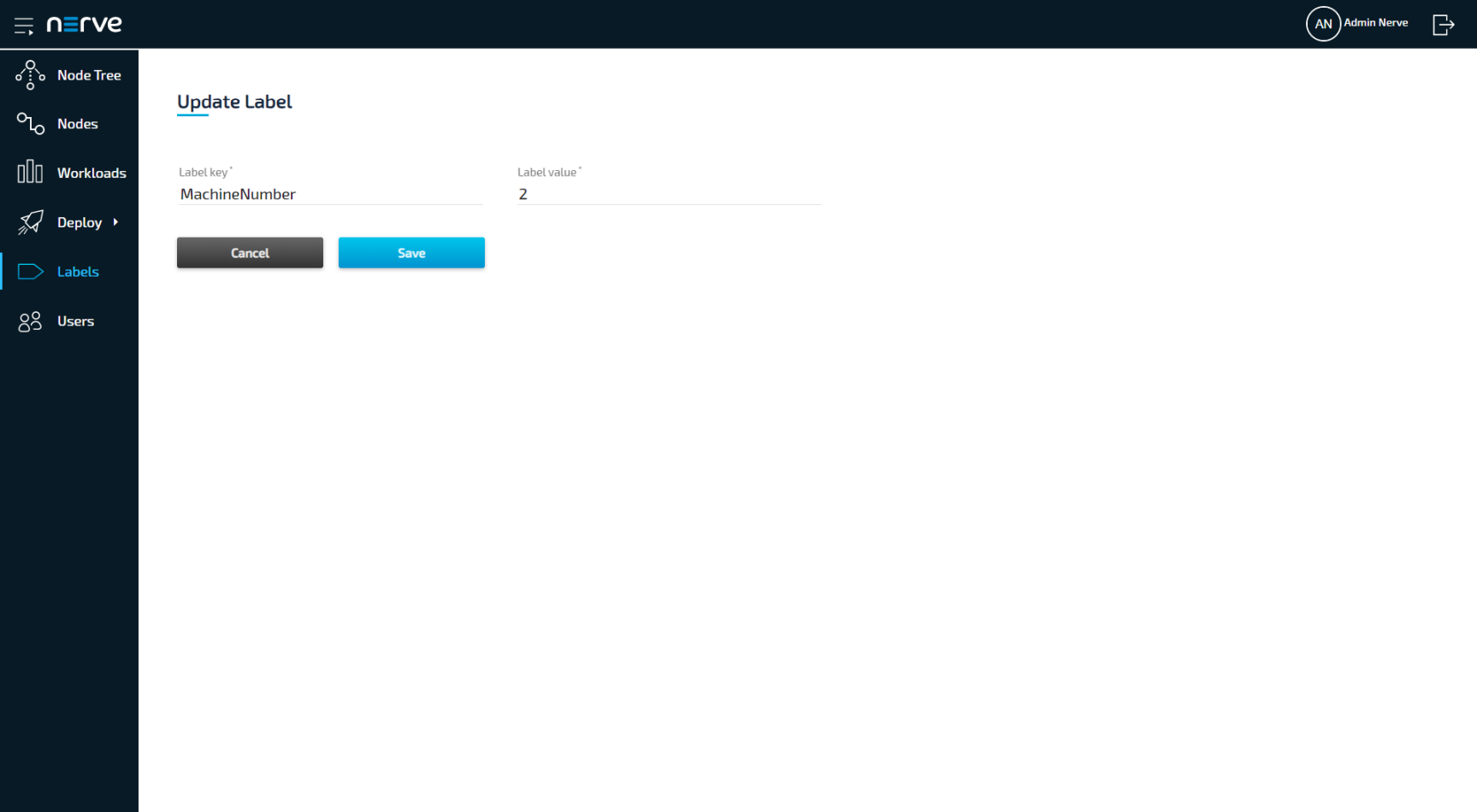
Editing a label is virtually identical to the process of creating a new label. Note that labels will be edited even if they are currently assigned to nodes or used as selectors by workloads.
- Select Labels in the menu on the left side.
- Select a label in the list to edit.
-
Edit Label key (1) and Label value (2).
Note
Label keys must consist of one word only. Use
-and_as separators.
Also, only use alphanumeric characters (a-z,A-Z,0-9) and underscore (_). Any other special characters are not allowed. -
Select Save to update the label.
Merging labels
Labels with overlapping information or typos can be merged into one. However, only label keys are merged. The label values are left untouched and assigned to the new label key.
- Select Labels in the menu on the left side.
- Select the Merge labels icon in the upper-right corner.
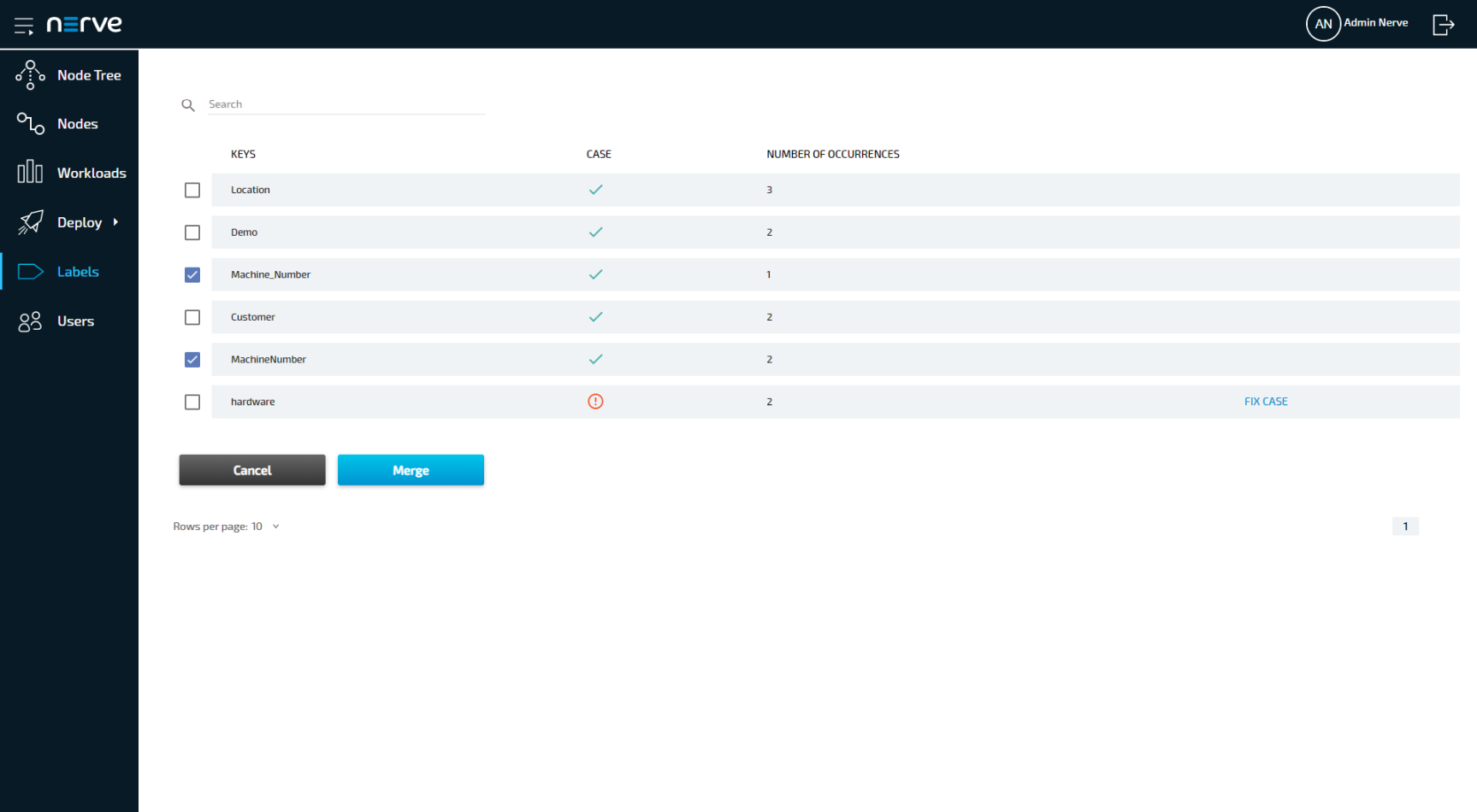
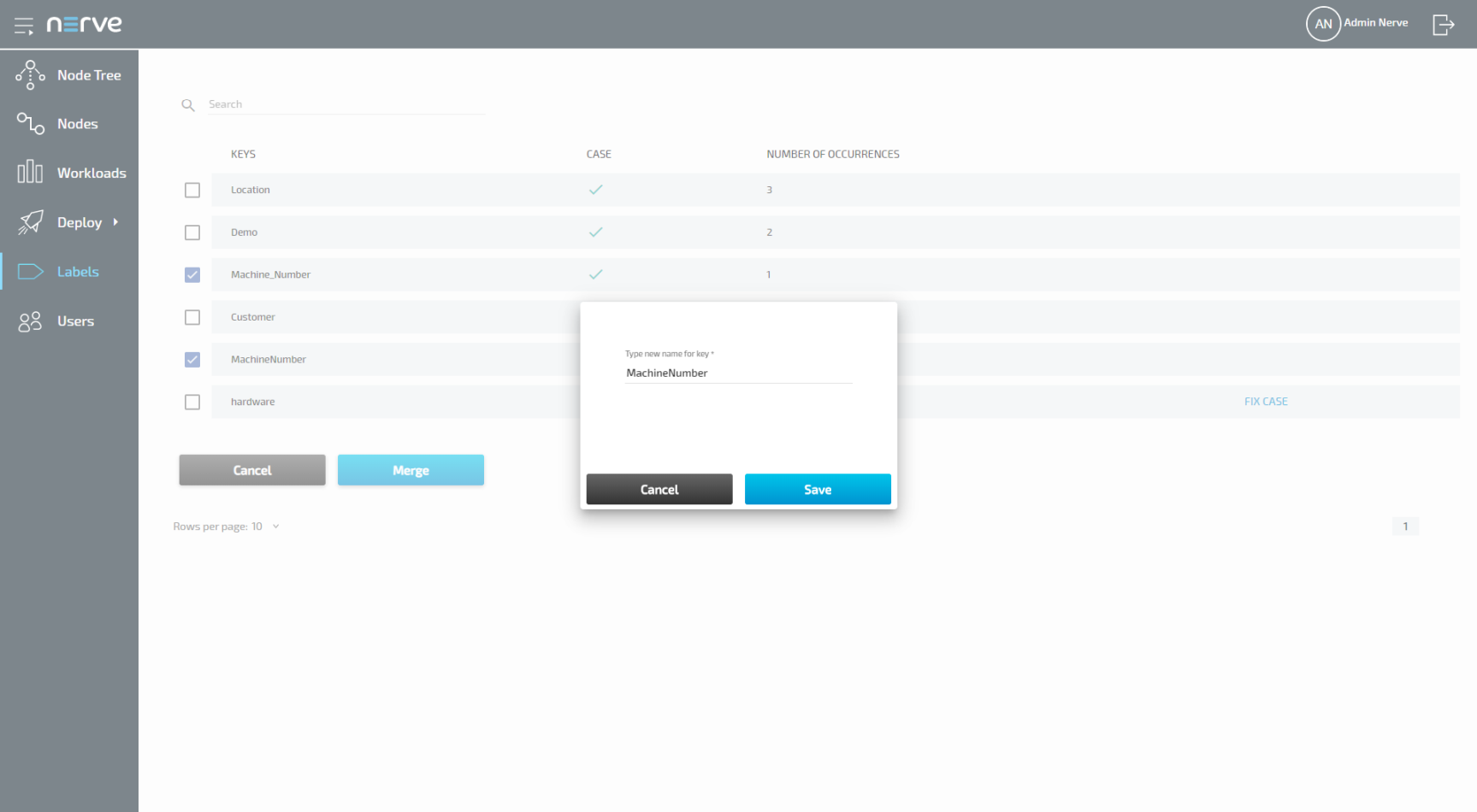
- Tick the checkboxes left of the labels in the column Keys (2) that will be merged. Multiple labels can be selected.
-
Select Merge.
Note
The table here gives the following information:
-
Case (3)
The system checks if labels that use the same characters are also written in the same case. A blue check mark indicates that the case matches. A circled red exclamation mark appears
  if the case does not match.
 -
Number Of Occurrences (4)
The number here indicates how many labels have been defined with the same label key.
-
-
Type in the new name for the label key.
-
Select Save to save the new label.
Note
If labels have the same label key but are not written in the same case, the Management System will recognize it. In this case, select FIX CASE (5) in the list, type in the new name for the label key and select Save.
Deleting a label
Note that when a label is deleted from the list, it will also be deleted from any node or workload that had the label assigned.
- Select Labels in the menu on the left side.
-
Select the Delete icon
 in the Action column of the label you want to delete.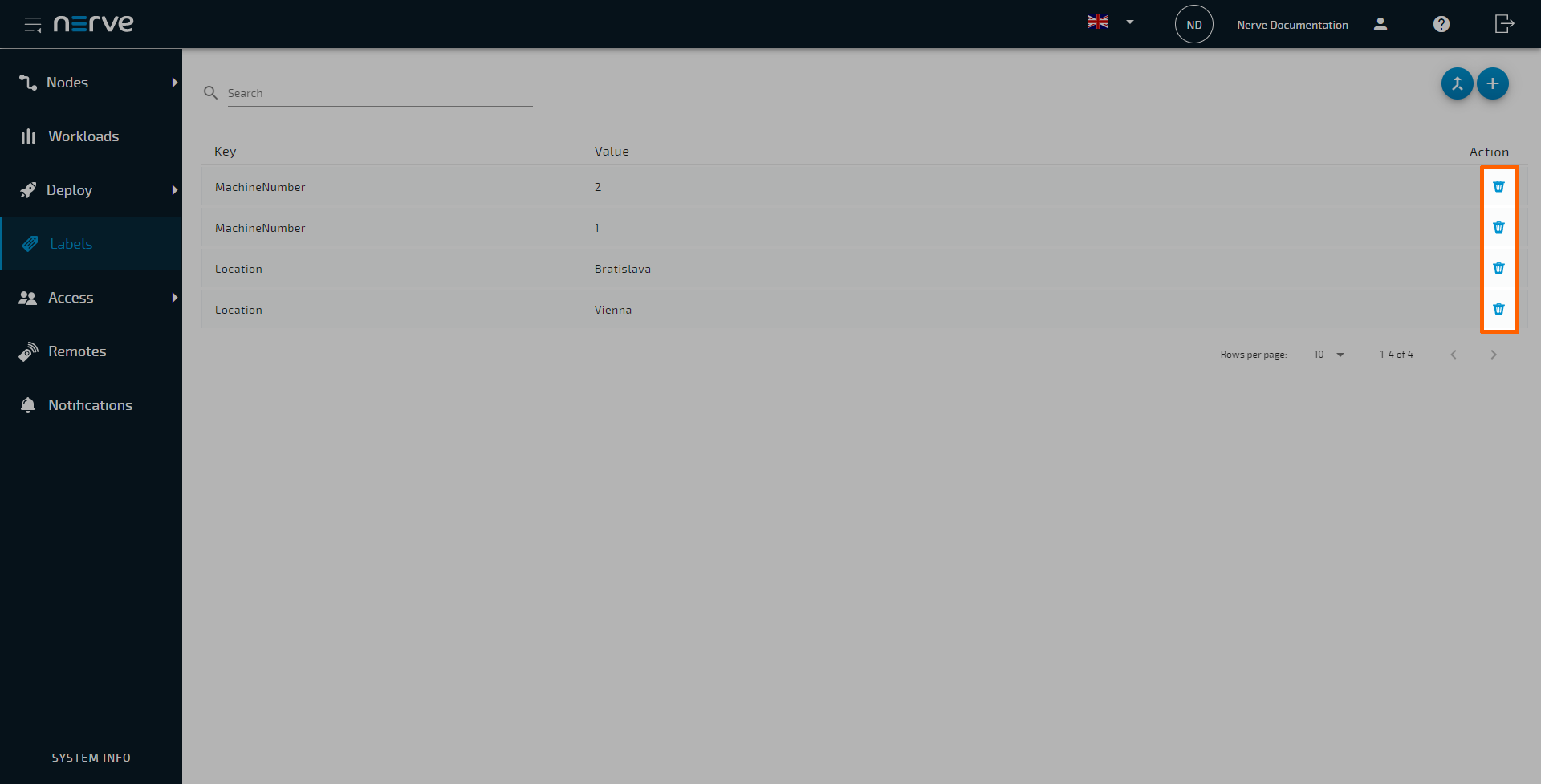
-
Select Yes to delete the label.
Manage node labels
Assign labels to a node
You can assign a label to a node in the Nodes menu. It is recommended to create labels before they are added to nodes. For more information about how to create a label, refer to Adding a new label.
- Select
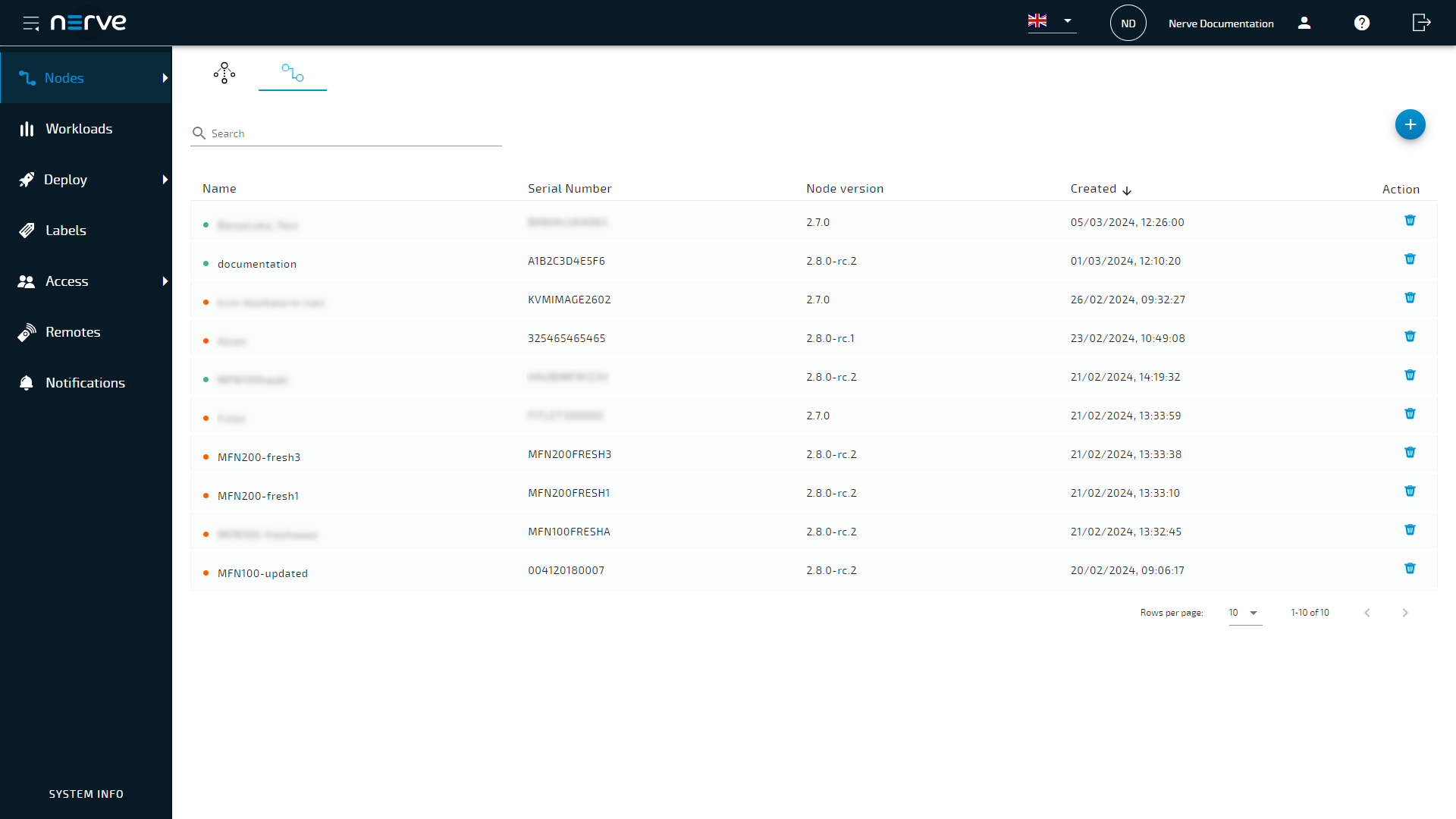
 Nodes > View in the navigation on the left.
 - Select a node from the list to which you want to assign a label.
-
Select the tab Labels.
-
Select a label key from the drop-down list New label key.
- Select a label value from the drop-down list New label value.
- Select the Add new label icon
 to assign the label to the node.
Unassign labels from a node
You can unassign a label from a node in the Nodes menu.
- Select Nodes > View in the navigation on the left.
- Select a node from the list from which you want to unassign a label.
- Select the tab Labels.
- Select the Unassign label icon next to the label you want no longer to be assigned to the node.
- Select the Confirm icon to unassign the label.
Modify a node’s assigned label
You can modify a node’s assigned label in the Nodes menu.
- Select Nodes > View in the navigation on the left.
- Select a node from the list from which you want to unassign a label.
- Select the tab Labels.
- Select the Edit Label icon
 .
. - Select a new value.
- Select the Confirm icon to save the modification.
Adding a label to a workload
Adding a label to a workload is done in the Workloads menu. It is recommended to create labels before they are added to workloads. Note that only pre-defined labels can be added to workloads. For more information about how to create a label, refer to Adding a new label.
- Select
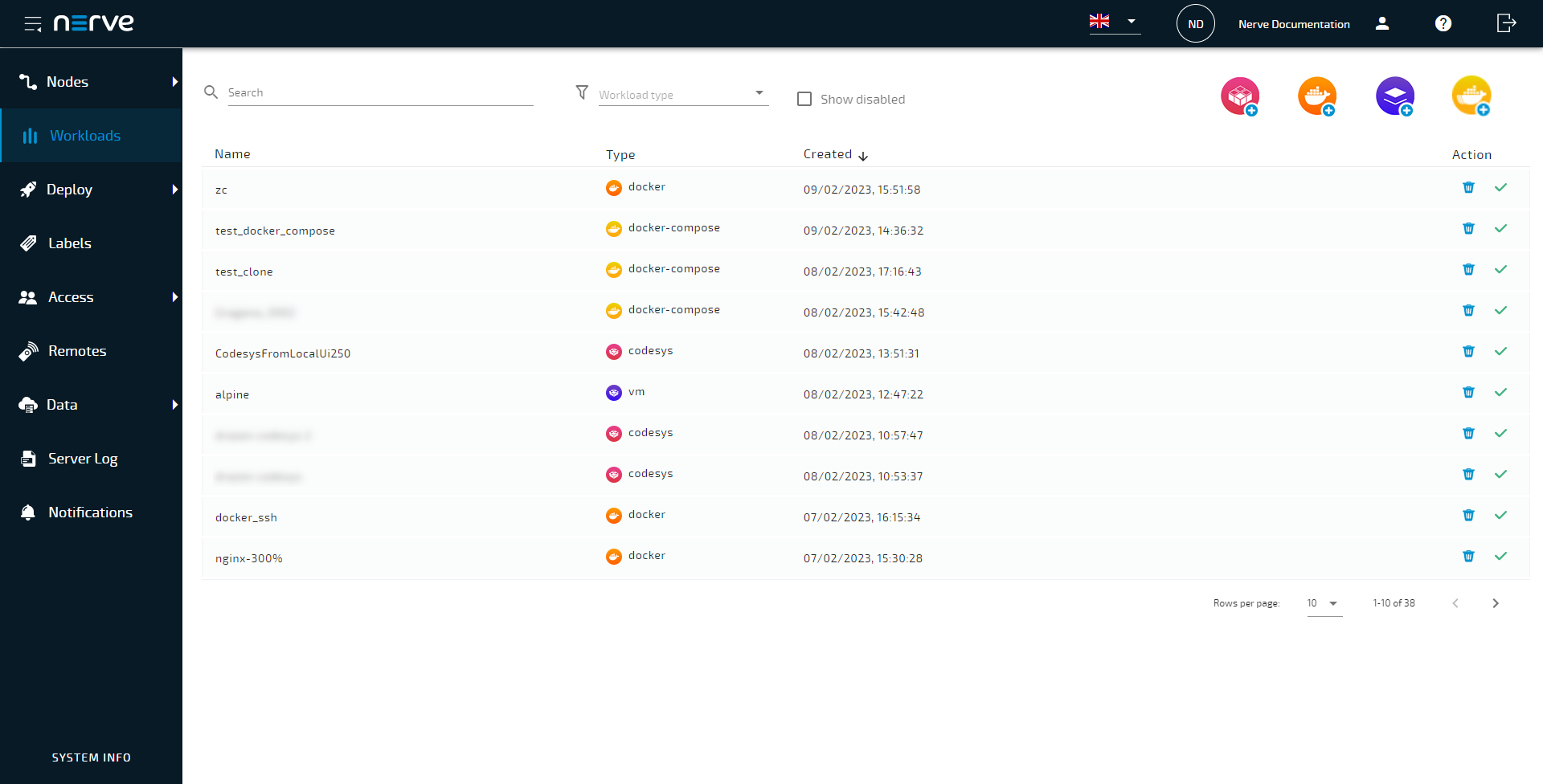
 Workloads in the navigation on the left.
 -
Select a workload to which a label will be assigned.
-
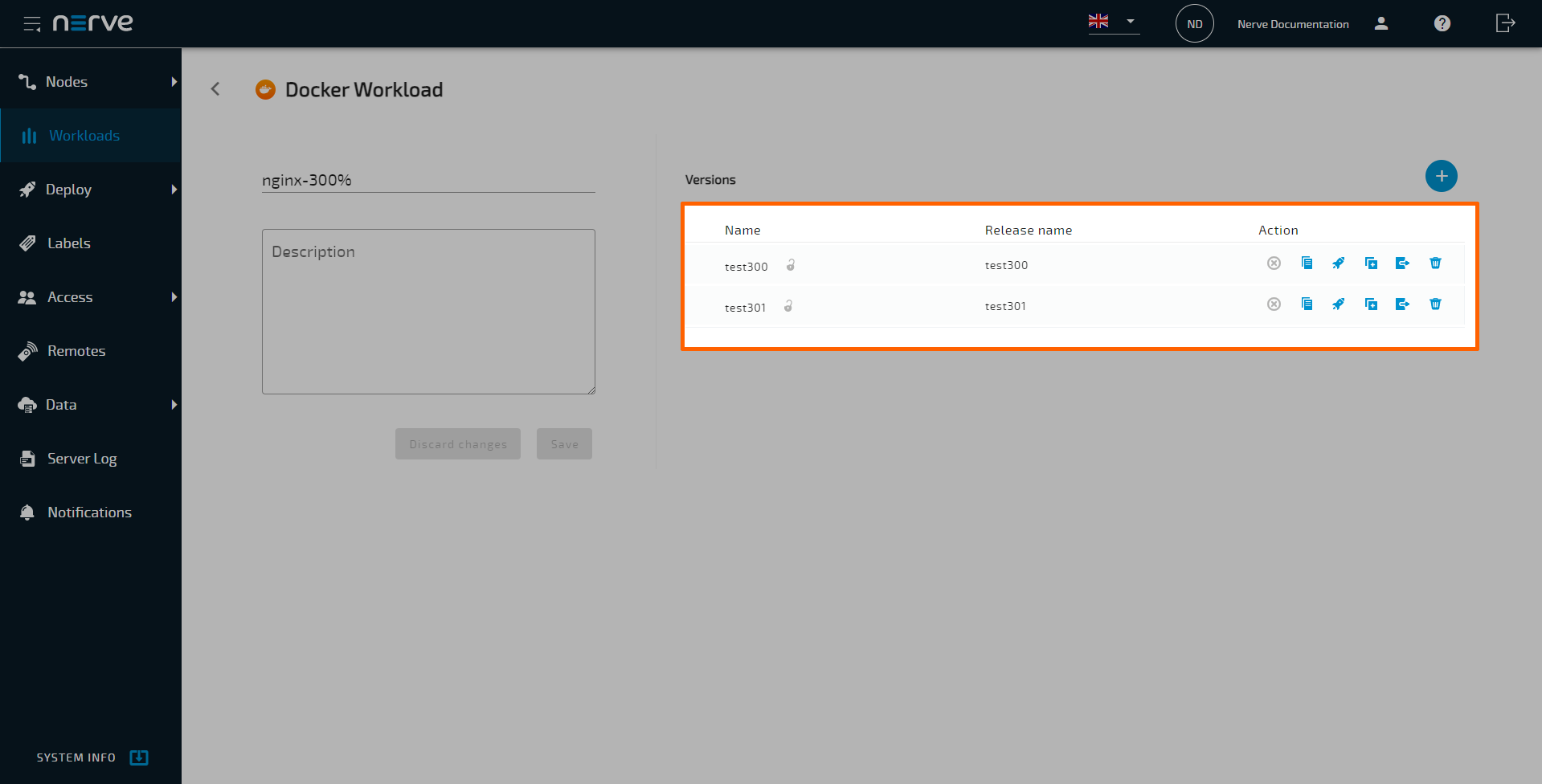
Select the workload version to which a label will be assigned.
-
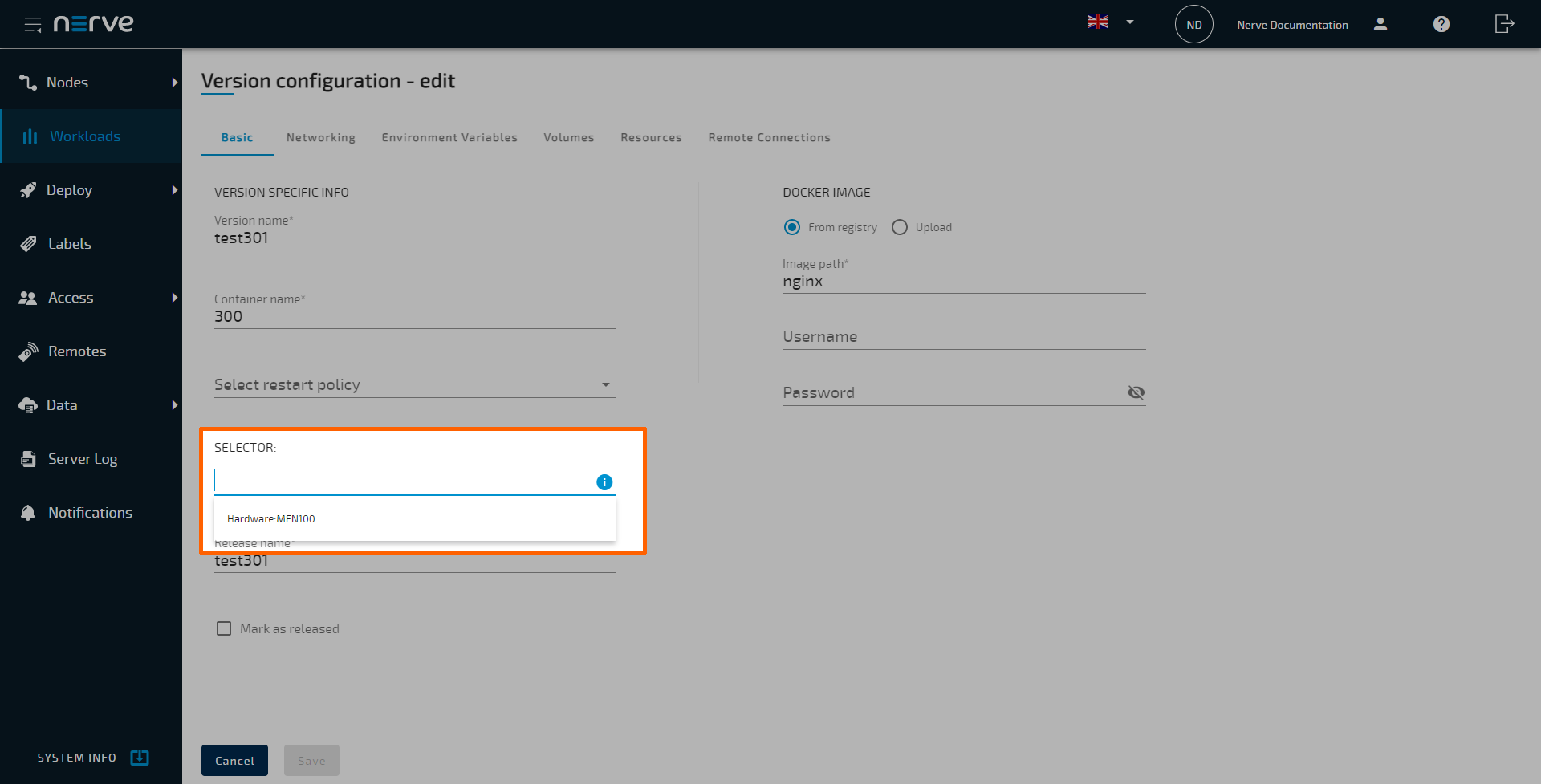
Select the Insert label field. Available labels will be displayed.
-
Select a label from the suggestions.
- Select Save to save the changes.